06 Administration
General requests
General requests record which shift types a person would rather not work on certain weekdays – or at all. Autoplan and the roster planner take them into account.
- For
- Administrator
Opening
In Manage Staff, click the Staff requests icon in the person's row.
Setting requests
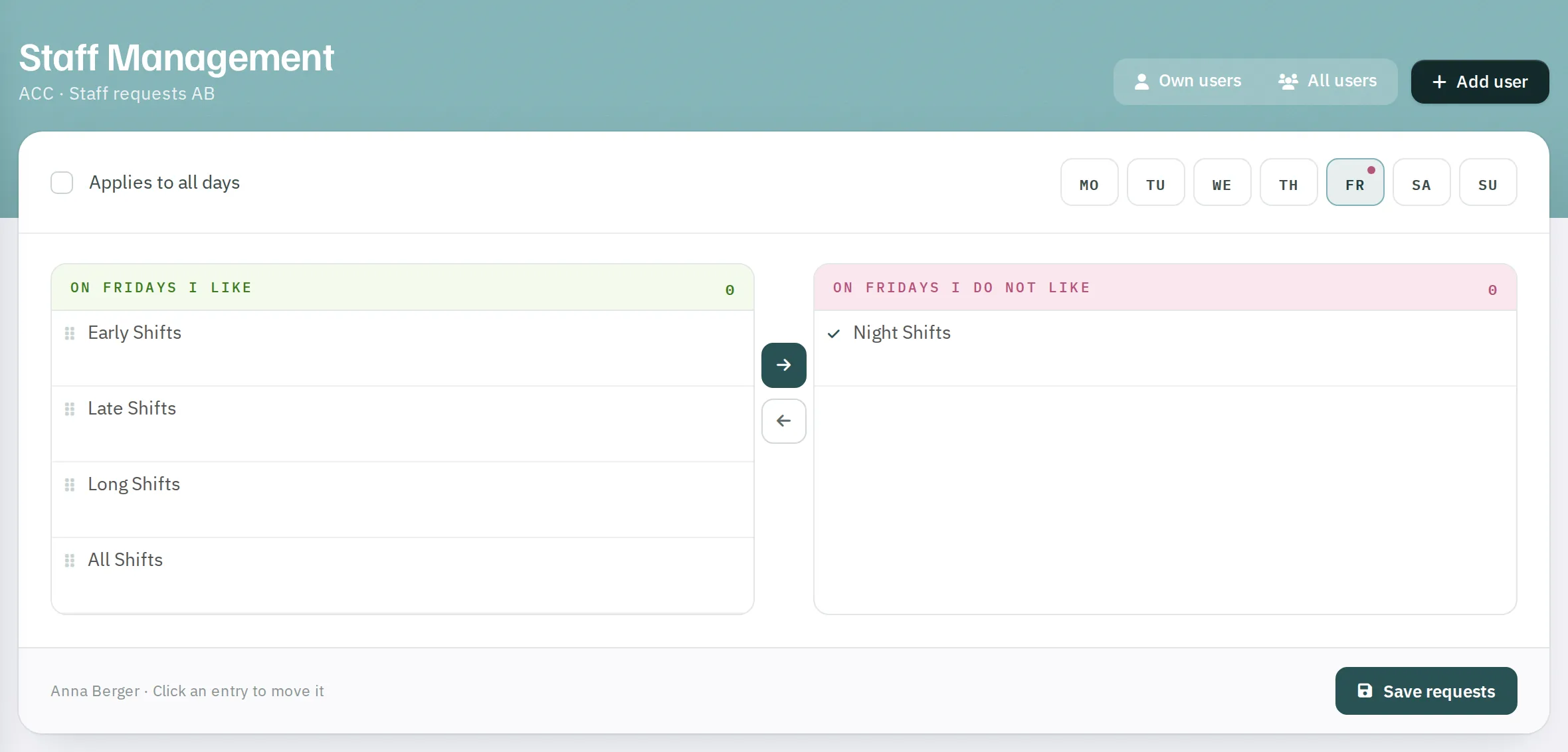
- If the request is to apply on all days, leave Applies to all days switched on. Otherwise switch it off and select a weekday at the top – MO to SU. A dot marks days with entries.
- The shift types are listed on the left under I generally like and on the right under I generally DO NOT like. A click moves an entry to the other side.
- Click
Save requests.
You can choose from Early Shifts, Late Shifts, Night Shifts, Long Shifts and, per weekday, All Shifts. The roster planner defines which shifts belong to which group under Shifts.
Saving replaces all the person's previous general requests. Either Applies to all days applies or the entries per weekday – not both.
Where they take effect
- In the monthly roster, a shift is hatched yellow if it breaches a general request. The tooltip on the initials shows all general requests.
- Autoplan takes them into account – more strictly for part-time staff than for full-time staff.
- The person sees their general requests in their profile.
General requests apply to the person in all units.