06 Administration
Licences
Licences, endorsements, medical certificates and requirements are set up as a tree, assigned to people and monitored with expiry dates and warning periods.
- For
- Administrator
Licensing in the sidebar opens License Management with three views:
| Button | View |
|---|---|
Alerts |
Expiring and expired licences – see Checking licences |
Staff |
Each person's licences |
Licenses |
The organisation's licence tree |
The licence tree
Licences are set up as a tree of parent licences and subordinate endorsements – for example ATCO License with Supervisor (WM) below it. For each licence the list shows the name, the unit (or ALL UNITS), the validity in months and the warning periods in days.
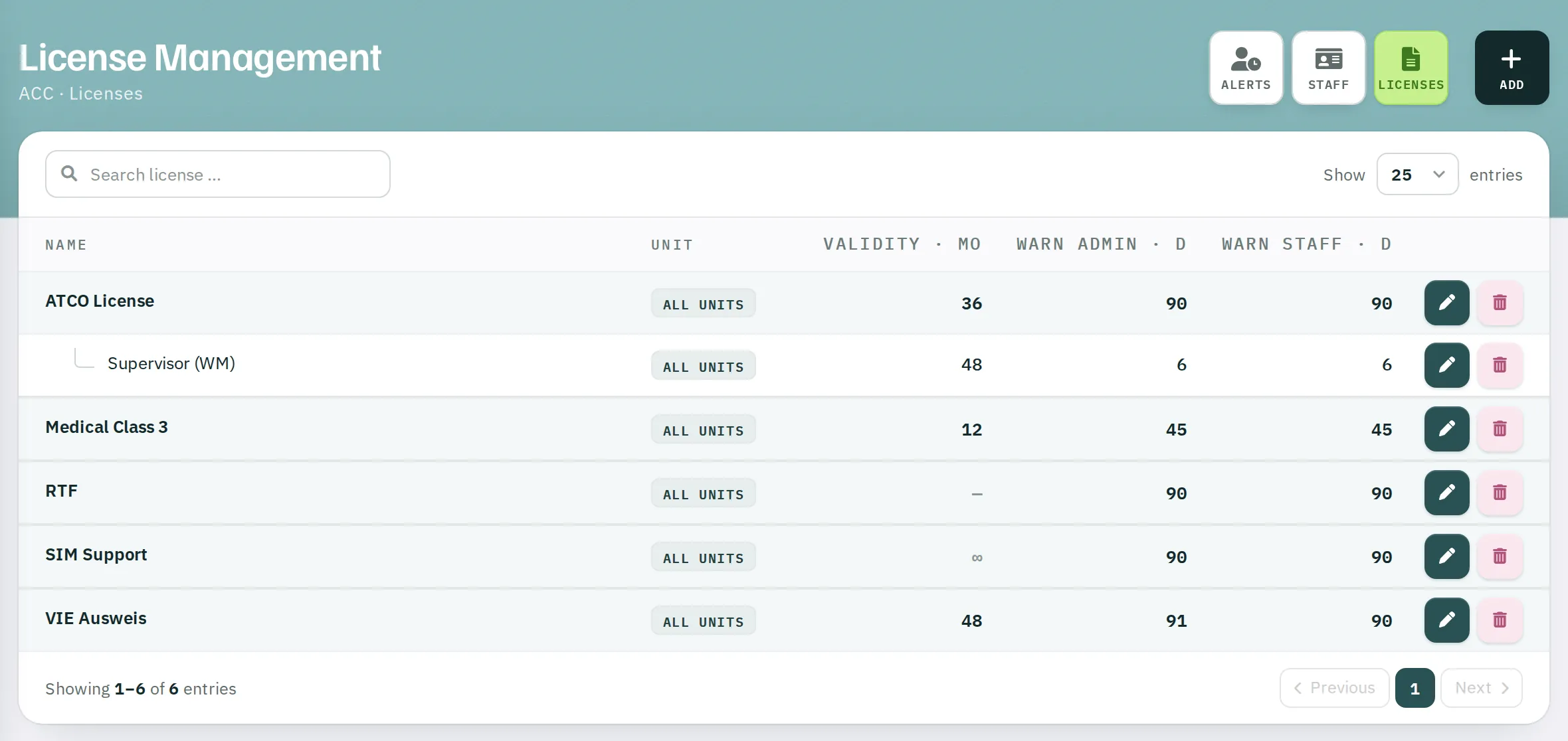
Creating a licence
- Click
Licenses, thenAdd. - Name – up to 25 characters.
- Parent – the parent licence, or
---for a top-level licence. - Optionally, Remarks.
- For All Units – otherwise the licence applies only to the active unit. Only possible if the parent licence also applies to all units.
- Is Requirement – for recurring obligations such as annual training. Requirements cannot have subordinate licences.
- Validity in months – Rostify uses it to suggest the new expiry date when a licence is renewed. 0 = no expiry.
- Warning Admin in days – from when the licence appears in the alert list and on the holder's dashboard. 0 = no warning.
- Warning Staff in days. At present, the display for the licence holder also uses Warning Admin.
- Click
SAVE.
A licence can only be deleted if nobody holds it.
A person's licences
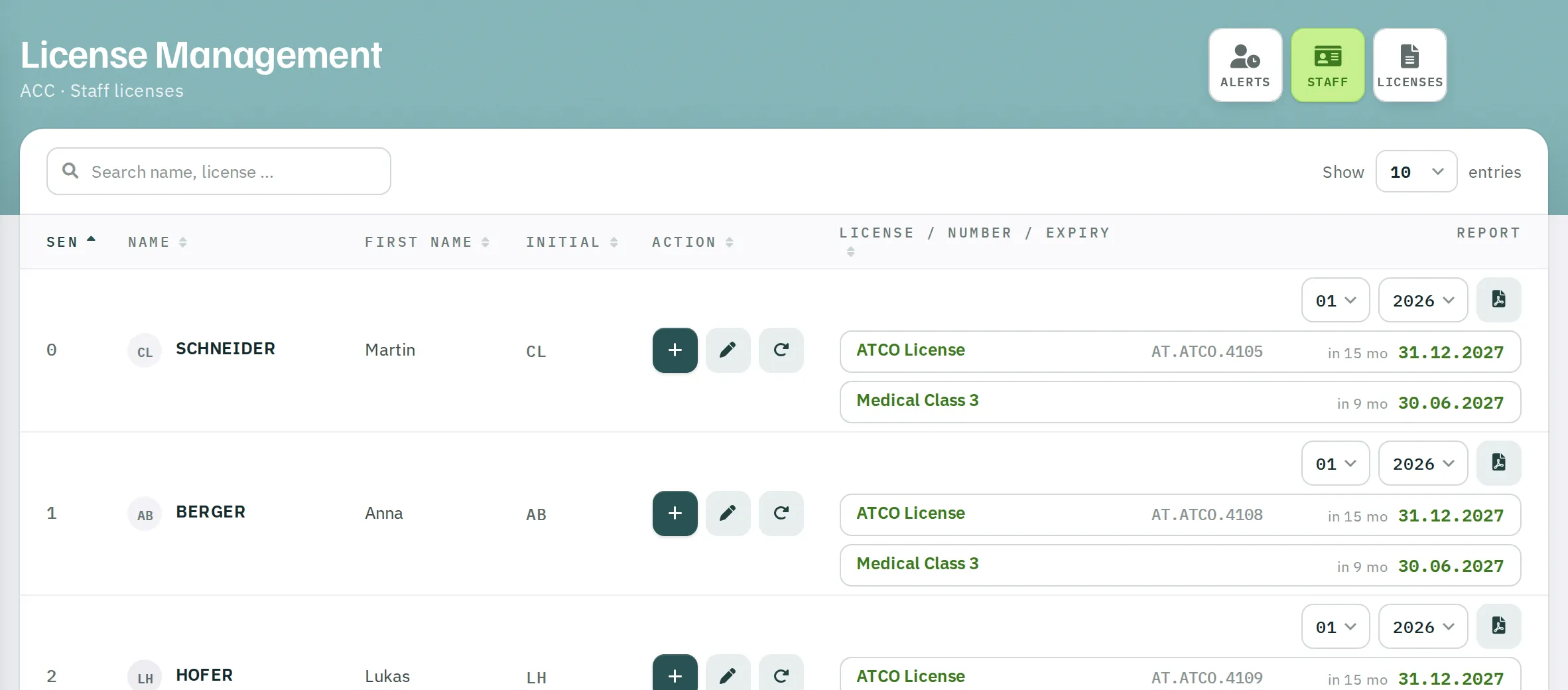
The Staff view shows each person's licences as a tree with number and expiry – grey for inactive, red for expired, ochre within the warning period.
| Action | Effect |
|---|---|
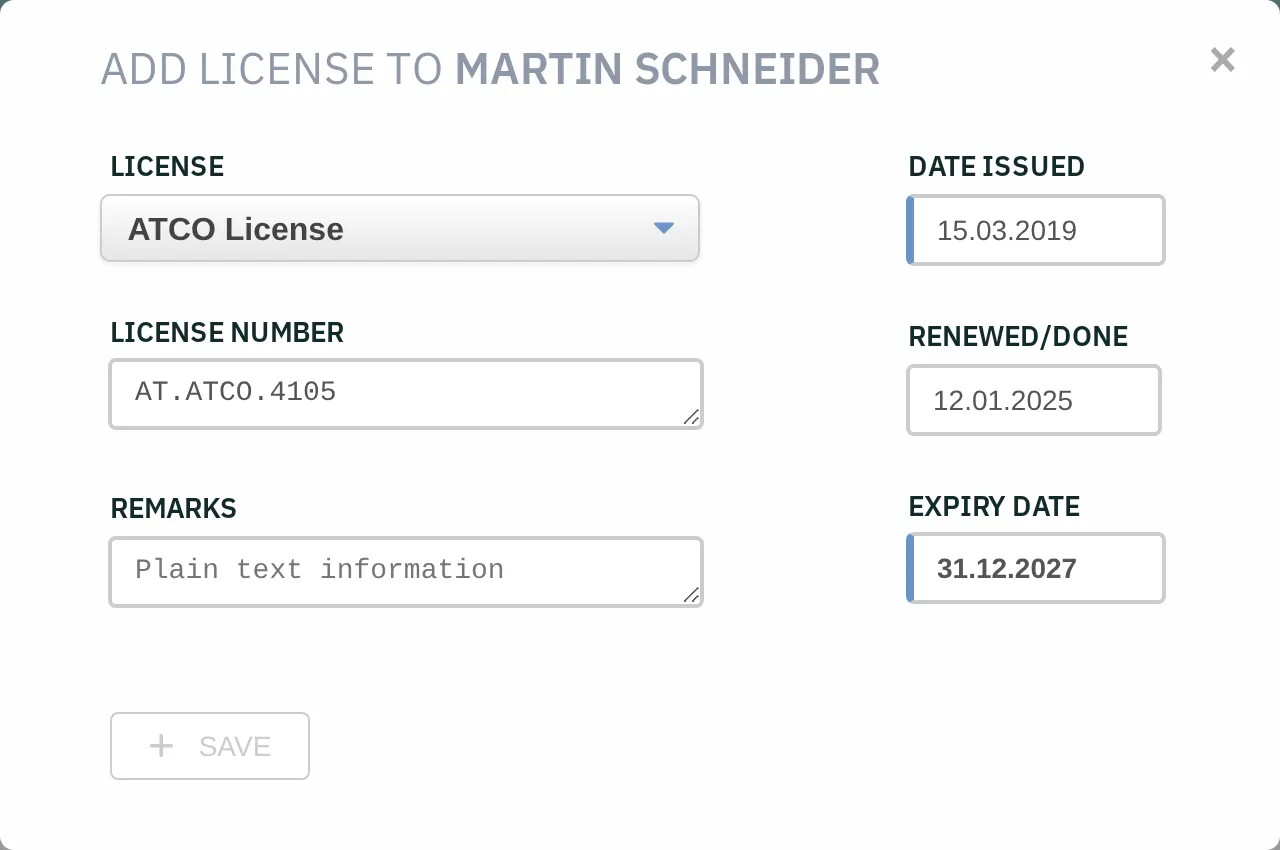
| + Add license | Select the licence and enter the License Number, Date Issued, Renewed/Done and Expiry Date (required). Licences the person already holds are locked; subordinate licences can only be selected once the person holds the parent licence. |
| Pencil | Change the issue date, switch between active and inactive, delete the licence. A licence with subordinate entries can only be deleted once those have been deleted. |
| Circular arrow | Renew – see Checking licences. |
| Report | Select month and year, then the PDF: the person's time on positions according to the OPS schedule. |
Linking licences to shifts and positions
The roster planner defines which licences a shift or position requires under Shifts and Positions. Rostify then only assigns people who hold all required licences as active. The expiry date alone does not block anyone – so set expired licences to Inactive or renew them.