04 Supervisor
Recording time
Under Time you enter ad hoc overtime, record clock-ins and clock-outs for staff and correct assigned overtime.
- For
- Supervisor
Time in the sidebar opens the page with two views: Overtime and Time Clock. The toolbar has three buttons: Overtime, Clock in, Clock out.
Entering ad hoc overtime
For extra work that does not replace a shift that dropped out – an extension due to traffic, for example:
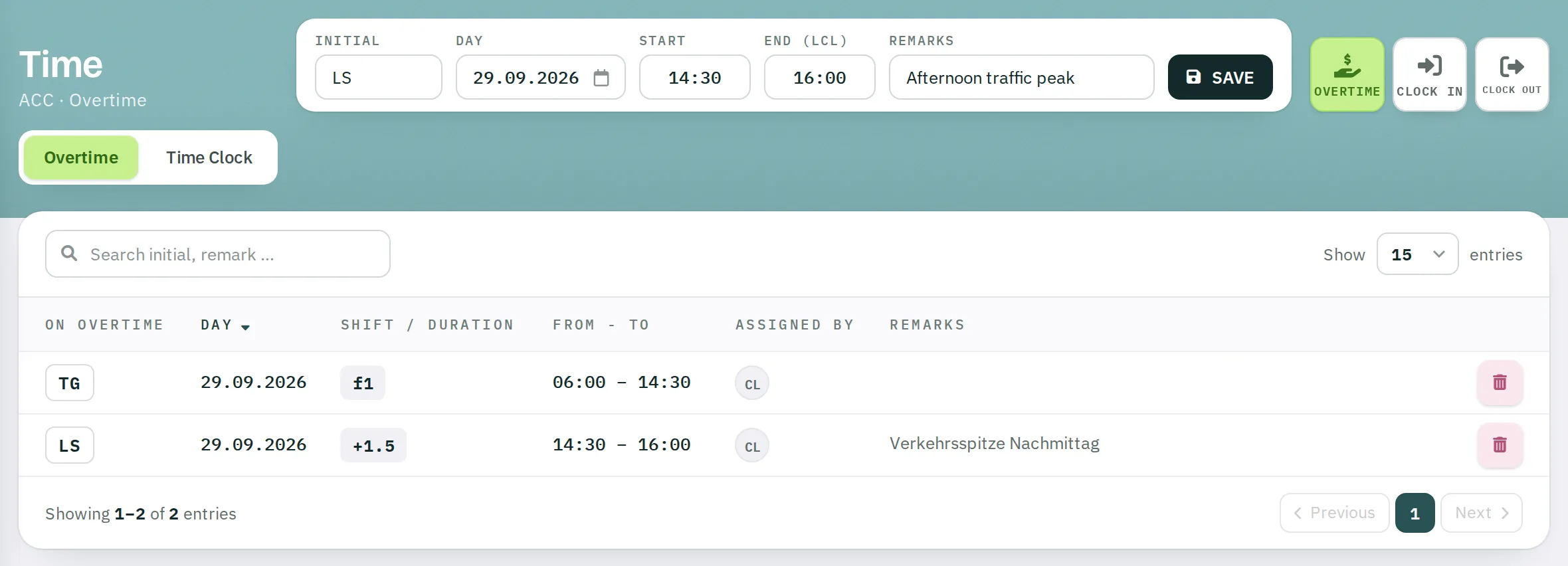
- Click
Overtime. - Enter the Initial, Day, START and END (lcl). Crossing midnight is possible.
- Optionally, Remarks (up to 30 characters).
- Click
SAVE. Confirmation: OVERTIME SAVED.
The hours appear on the supervisor board under Additional shifts, in the OPS schedule and in the person's roster.
| Message | Reason |
|---|---|
| Staff member is absent! | The person is absent on that day. |
| Can´t do - user already on overtime | There is already overtime on that day. |
| Hey! Selected dates too far in past | The date is before the start of the previous month. |
Warnings about shift sequence and weekly hours appear as they do when replacing a shift – the entry is saved anyway.
Overtime list
The Overtime view shows all replacement and overtime entries of the unit from the current month onwards, newest first:
| Column | Content |
|---|---|
| ON OVERTIME | initials – or NIL for "no replacement needed" |
| DAY | date |
| SHIFT / DURATION | shift code or hours |
| FROM - TO | times |
| ASSIGNED BY | who entered it |
| REMARKS | free text |
Use the bin to delete overtime. Supervisors can delete entries from today onwards; older ones can only be deleted by planners. If the overtime belongs to a replacement, the shift is then open again in the absence list. You also delete an accidental NIL here.
Time clock for staff
If someone comes in earlier or leaves later, record it for them:
- Click
Clock inorClock out. - Enter the Initial, Date (six days back to 14 days ahead) and the time. The current time is filled in by default.
- Click
SAVE.
Rostify calculates the difference from the scheduled shift – exactly as with the staff time clock.
The Time Clock view lists the entries for the past and the coming two weeks:
| Column | Content |
|---|---|
| INITIAL, DAY | person and date |
| ASSIGNED BY | who made the last entry |
| REMARKS | remark of up to 25 characters, with a save icon |
| PLN | scheduled shift |
| BEGIN | END, DURATION | times |
| TC Δ | difference, green if positive, red if negative |
| EVENT | clock in, clock out, break – each with ✕ to delete |
Supervisors and planners can delete entries up to seven days afterwards. A Clock in can only be deleted once the Clock out has been deleted.