05 Rostering
Shift patterns
The shift pattern defines which shifts are needed on each weekday. It is the template for the monthly roster, the autoplan, the daily demand and the supervisor board.
- For
- Planner
Manage Patterns in the sidebar opens Pattern & Position Management with the list of shift patterns: Valid From, Valid To and name, sorted by start date.
A pattern repeats weekly within its period. Only one pattern may apply per unit on any given date.
Creating a pattern by hand
- Click
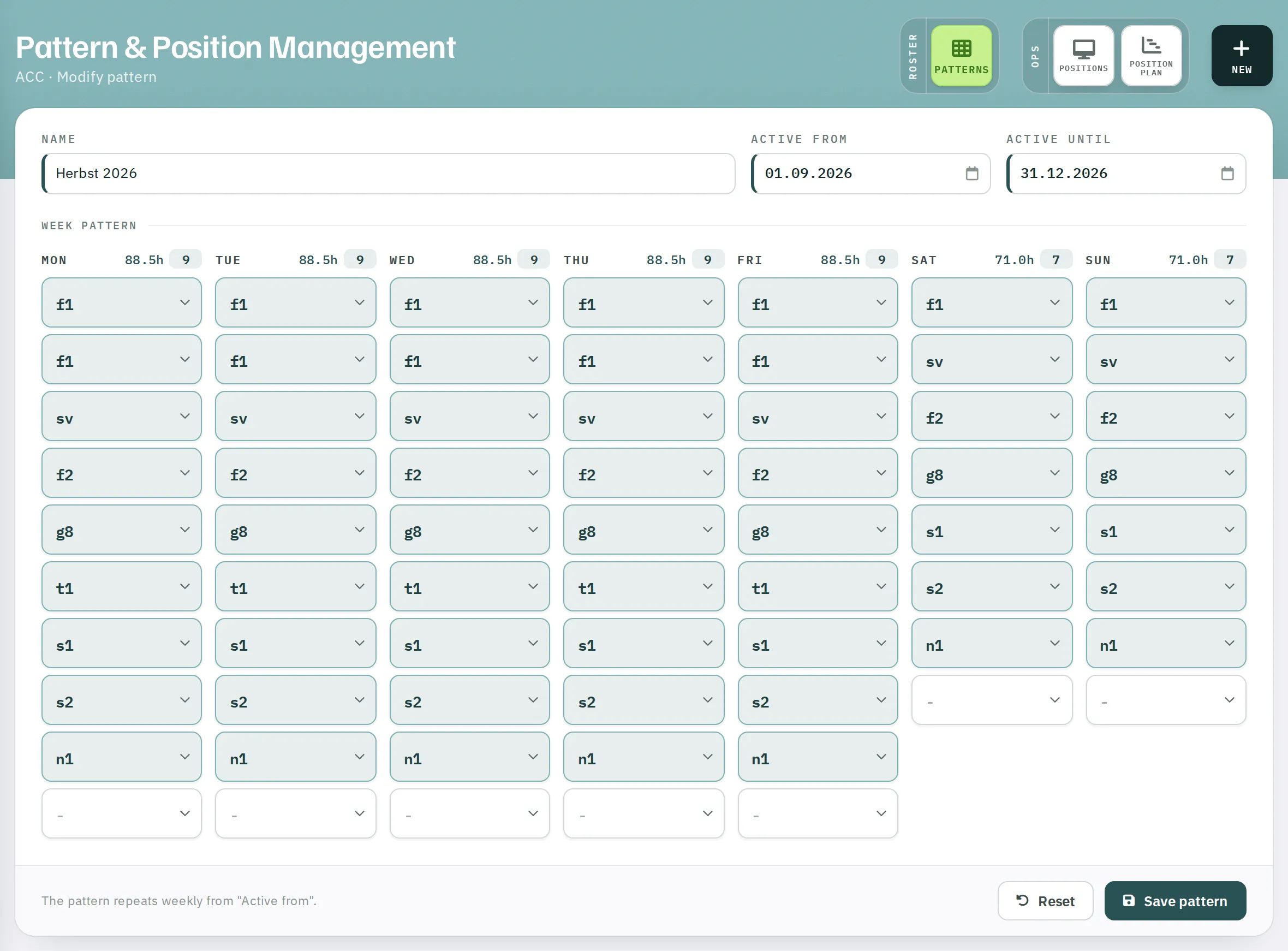
New. The calculator for the optimal pattern is at the top, the form below it. - Name – for example Summer pattern 2026, up to 25 characters.
- Active From and Active Until – both are mandatory.
- Week pattern: for each day from Mon to Sun, select the shifts needed. After each selection another empty field appears. If a shift is needed twice, select it twice.
- Click
Save pattern. Confirmation: Pattern SAVED.
Above each column, Rostify continuously shows the hours and the number of shifts for that day. To remove a shift, select - in its field.
The list offers active working and spare-time shifts; absences and placeholders do not belong in a pattern. In support units, categories such as ATCO or Office are also available as placeholders for the demand.
| Message | Reason |
|---|---|
| Please enter an end date. | Active Until is missing. |
| "Active Until" is before "Active From". | The dates are the wrong way round. |
| Patterns overlap | Another pattern applies in the same period. |
Changing, duplicating and deleting a pattern
| Action | Effect |
|---|---|
| Edit | Opens the form. Changes take effect immediately on the daily demand, the autoplan and the supervisor board. |
| Duplicate | Creates a copy with the period 01.01.2000–01.01.2000 so that it does not overlap anything. Then adjust the name and period. |
| Delete | Removes the pattern. |
For a new season: duplicate the pattern, adjust the period, change the shifts. The old pattern remains in place for the past months.
Where the pattern takes effect
- Monthly roster: the daily demand below the grid compares each day with the pattern.
- Autoplan: plans exactly the working shifts of the pattern. Without a pattern there is nothing to plan.
- Supervisor board and OPS schedule: show which shifts must be staffed according to the pattern.
- Resource planning: calculates the staffing demand from the pattern.
- Group roster: the last page shows the pattern for the month.