04 Supervisor
Recording an absence
Enter sick reports and other short-notice absences as soon as the call comes in. Rostify shows straight away which shifts need to be replaced.
- For
- Supervisor
The Absence page
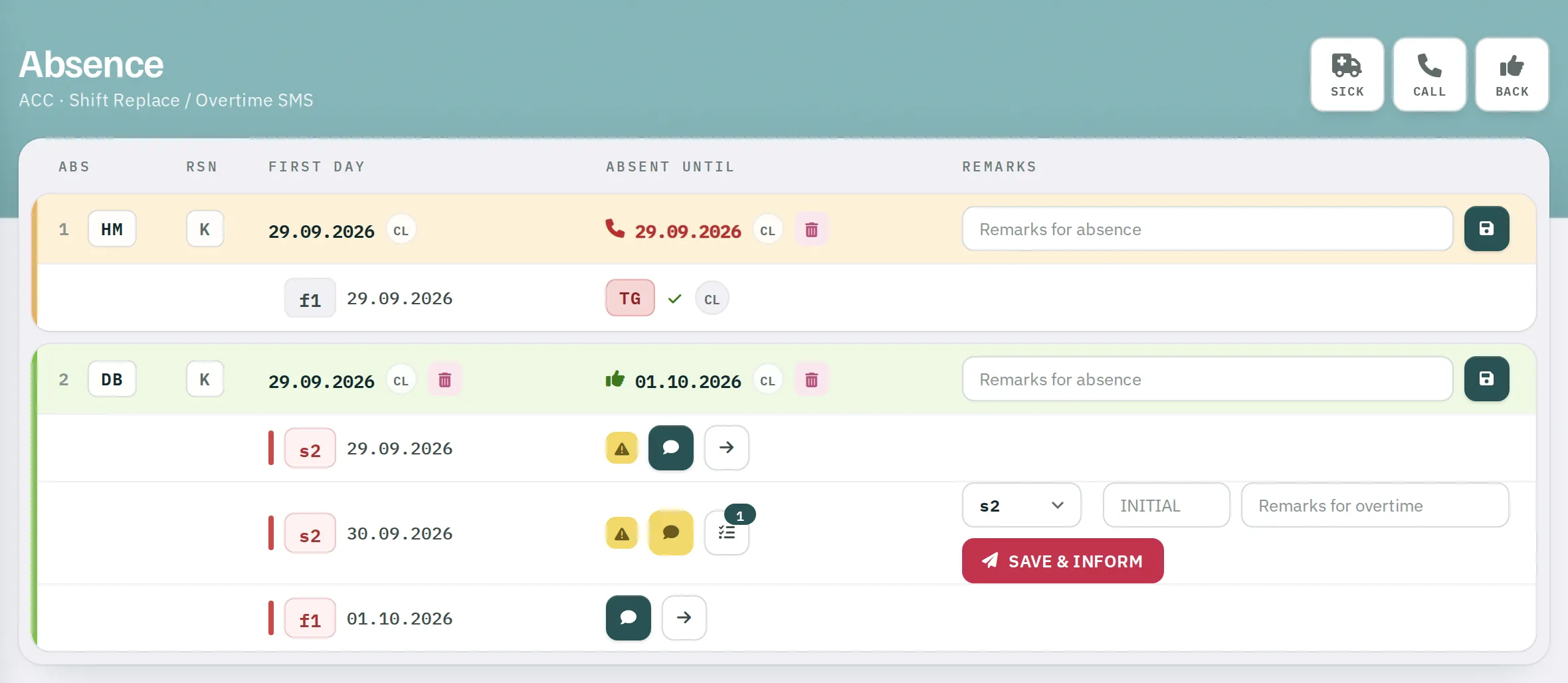
Absence in the sidebar opens the list for the active unit. It shows every absence that is still relevant from yesterday onwards – so someone reported fit yesterday stays visible for one more day.
The toolbar has three buttons. Each opens an input row:
| Button | Purpose |
|---|---|
Sick |
New absence |
Call |
Enter the next call date |
Back |
Enter the last day of the absence |
New absence
- Click
Sick. - Enter the Initial. Initials that do not exist in the unit turn the field pink, and
SAVEstays disabled. - Choose the Reason. K (sick leave) is preselected; the planner defines which reasons are available.
- First Day – today by default.
- Enter either the next call date (Next Call) or the last day (OR Last Day). If the end is still open, use the call date.
- Click
SAVE. Confirmation: Thank you! Absence saved.
The absence appears immediately in all rosters, on the supervisor board and in the OPS schedule.
| Message | Reason |
|---|---|
| Date is missing! | Neither a call date nor a last day was entered. |
| Please check dates! | The call date or last day is before the first day. |
| Hey! Selected dates too far in past | The first day is before the start of the previous month. |
| Absence for this person already exists | Overlap – or the person still has an open absence with no end date. |
Calls and return
As long as the end is open, the row is orange. The Absent Until column shows a telephone with the next call date. If that date is today or overdue, it flashes red. Calls that are due also appear on the dashboard under EXP. CALLS.
- New call date:
Call, choose the person from the list, enter the date, save. The new date must be later than the previous one. - Return date known:
Back, choose the person, enter the Last Day, save. The row turns green, with a thumbs-up and the date.
If someone reports fit one day earlier than agreed at the last call, Rostify saves this and points it out: Success - data saved! But person back (recovered) one day earlier.
Reading the list
| Column | Content |
|---|---|
| Abs | sequential number and initials |
| Rsn | reason |
| First day | with the code of the person who entered it |
| Absent Until | call date (telephone) or last day (thumbs-up) |
| Remarks | free text of up to 50 characters, saved with the disk icon |
Below each absence are the shifts that drop out – in all of the person's units, up to the last day or the call date. Replacing a shift explains how to replace them.
Correcting and deleting
Bin icons appear next to First day, the call date and the last day:
| Icon next to | Effect |
|---|---|
| First day | deletes the entire absence with all call dates. Not possible once overtime has been assigned for a shift that dropped out. |
| Call date | deletes only the latest call date. |
| Last day | resets the end; the absence is open again. |
Supervisors can delete an entry up to 24 hours after it was created or last changed. After that, only the planner can.