04 Supervisor
Checking licences
The Alerts list shows whose licences are about to expire or have expired. Supervisors enter renewals directly.
- For
- Supervisor
- Administrator
Licensing in the sidebar opens License Management with the Alerts view. The Staff and Licenses views are reserved for administrators – see Licences.
The alerts list
It shows every licence held by people in the unit whose expiry date falls within the warning period or has already passed. The administrator sets the warning period for each licence.
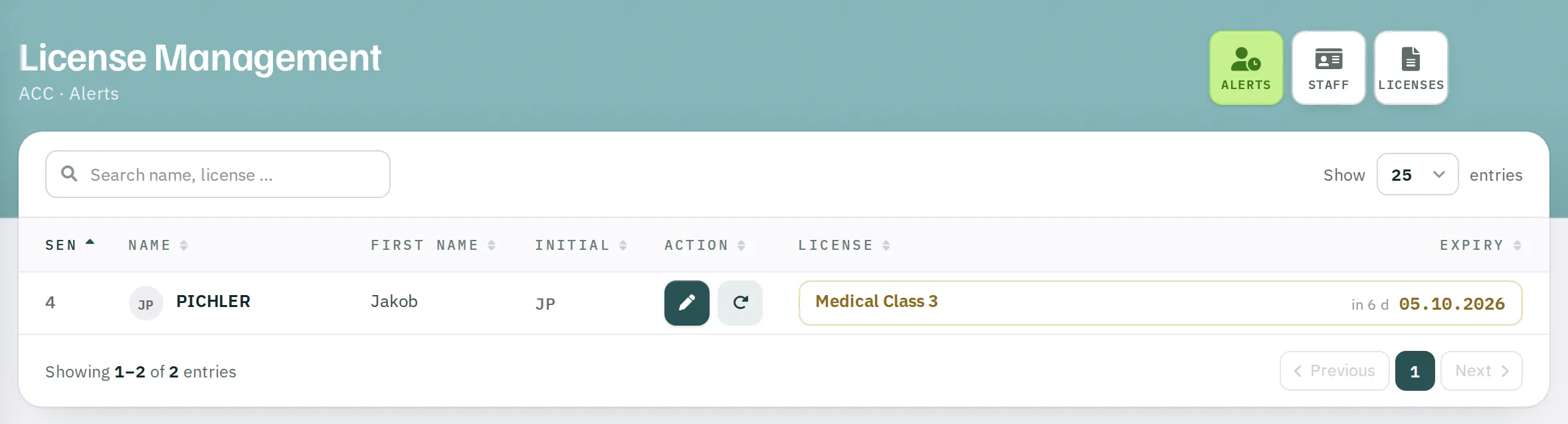
| Column | Content |
|---|---|
| Sen | ranking |
| Name, First Name, Initial | person |
| Action | modify, renew |
| License | designation |
| Expiry | relative – in 36 d., 5 d ago – and as a date |
- Ochre – still valid, but within the warning period.
- Red – expired.
- Yellow, italic – a requirement, such as annual training, is due.
Renewing a licence
- In the row, click the circular arrow Renew license.
- Choose the date under Renew / Done. Rostify suggests the new Expiry Date – renewal date plus the licence's validity. You can overwrite it.
- Optionally, Remarks, up to 35 characters.
- Click
SAVE.
The right-hand side of the window lists earlier renewals with date, person and remark. Remove a single renewal with the minus – the last remaining one can only be removed together with the entire licence.
| Message | Reason |
|---|---|
| Dates too far in future! | The renewal date is more than three months in the future. |
| Please check dates! | The date is before the issue date or before the last renewal. |
Editing a licence
With the pen you change the issue date and set the licence to Active or Inactive. An inactive licence no longer counts: shifts and positions that require it are no longer offered to the person. Only an administrator can delete a licence.
The window always preselects Active when it opens. Check the selection before you save.
Where else licences take effect
Shifts and positions can require licences. Rostify then only offers a person shifts and positions for which they hold all required licences as active – in the monthly roster, for requests, for exchanges, in the OPS schedule and in the overtime call. What counts is the Active switch, not the expiry date. So keep the alerts list up to date.
Licence holders see their own expiring licences on the dashboard under Warnings.