06 Administration
Managing staff
Create people, register them in units, assign roles and set their order in the roster.
- For
- Administrator
Manage Staff in the sidebar opens Staff Management for the active unit.
The list
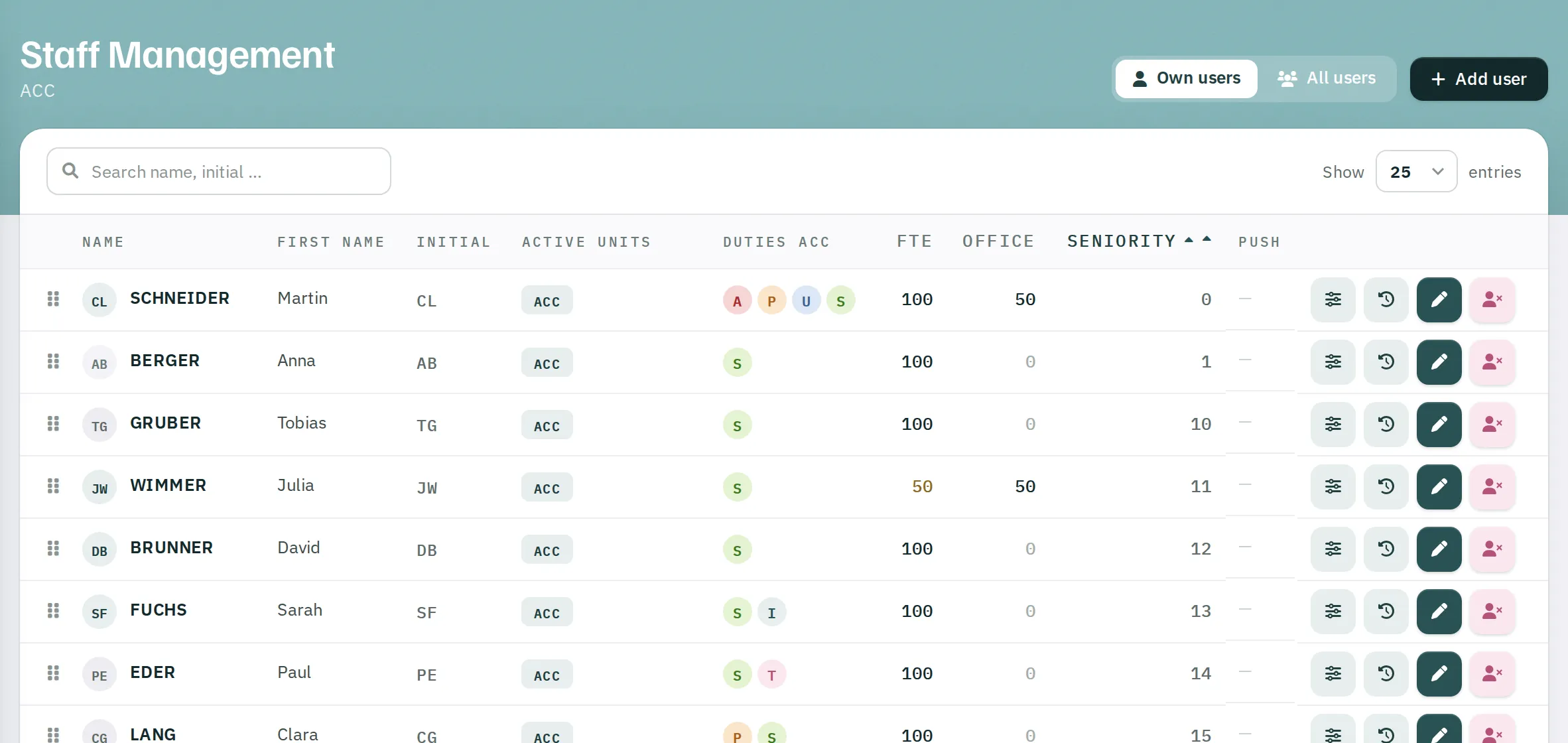
| Toggle | Content |
|---|---|
Own users |
Everyone registered in this unit. |
All users |
Everyone in the organisation. |
| Column | Content |
|---|---|
| Name, First Name, Initial | The person |
| Active Units | All the person's units, the active one highlighted |
| Duties | The roles in this unit as letters: A Admin, P Planner, U Supervisor, S Staff, O Observer, I Trainer, T Trainee |
| FTE, Office | Employment level and office share in per cent |
| Seniority | Position in the order |
| Push | Devices for notifications: iPhone, Android, browser – with a note if a device has not been seen for more than a month |
Setting the order
In the Own users view, drag a row to a different position. Rostify saves the new order immediately. People appear in this order in the monthly roster, in lists and in the printout.
Creating a person
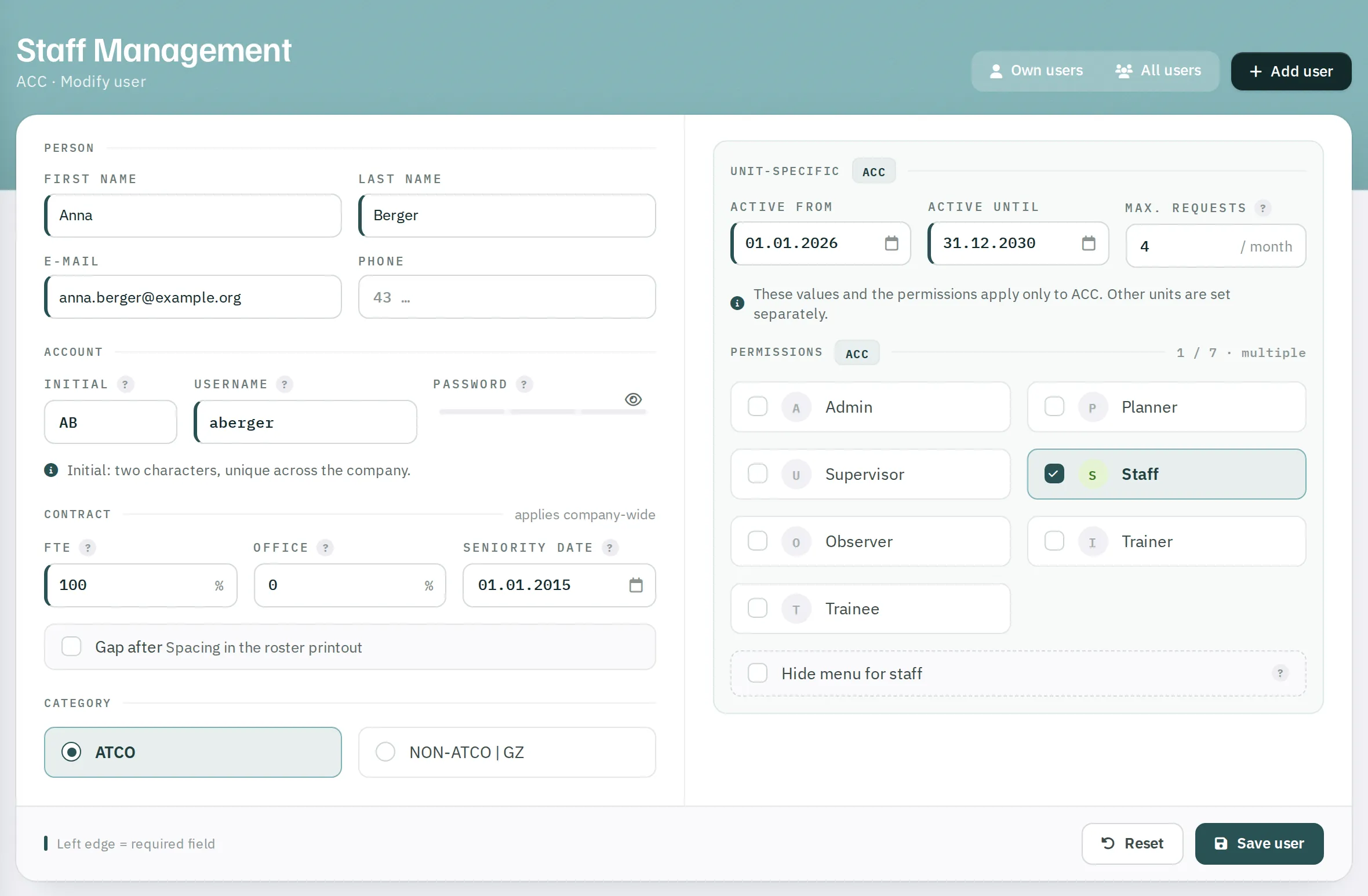
- Click
Add user. - Fill in the sections (see below).
- Under Permissions, tick the person's roles in this unit.
- Click
Save user. Confirmation: DATA SAVED.
The person does not receive a message. Give them the company ID, username and initial password yourself. They then set their own password via Forgotten password.
Person
| Field | Rules |
|---|---|
| First Name, Last Name | Required, up to 20 characters, starting with a capital letter |
| Required, in lower case – needed for resetting a forgotten password | |
| Phone | Optional, with country code but without "+" and without a leading 0, for example 4366412345678 – needed for SMS |
Account
| Field | Rules |
|---|---|
| Initial | Required, 2 to 3 capital letters, unique within the organisation. Cannot be changed once the person has been created. |
| Username | Required, up to 15 characters, letters only, unique across the system |
| Password | Initial password: at least 8 characters with lower-case and upper-case letters, a digit and a special character from @ $ ! % * ? &. When editing, leave it empty to keep the current password. |
If an initial or username is already taken, Rostify marks the field and Save user stays locked.
Contract – applies company-wide
| Field | Meaning |
|---|---|
| FTE | Employment level in per cent. Determines the target hours. |
| Office | Office share in per cent. Staff with an office share can also enter office shifts in published rosters. |
| Seniority Date | Date used for the order. |
| Gap after | Spacing after this person in the printout – for example between teams. |
| Category | ATCO or NON-ATCO | GZ – depending on the scope of duties. Determines the working-time model; Autoplan does not schedule NON-ATCO staff. |
Unit-specific
These values apply only to the active unit. You set other units in those units.
| Field | Meaning |
|---|---|
| Active From, Active Until | Registration period. The person appears in the monthly roster only in months covered by this period. |
| Max. Requests / month | Maximum number of shift requests. 0 = no requests. |
| Permissions | The roles. You cannot remove your own admin right. |
| Hide menu for staff | Hides the unit for the person if they are only staff there. |
Registering a person in another unit
- Switch to the unit the person is to join.
- Select
All usersand click Register user in the person's row. - Rostify creates the registration from today for five years – still without roles – and opens the form. Assign the roles and save.
Editing
The pencil opens the form. Name, e-mail, phone and contract apply to all units; period, request limit and roles only to the active unit. New roles take effect the next time the person signs in.
Deleting
The bin removes the person from this unit. If they are then no longer in any unit, they are deleted completely – including accounts, archive data and licences.
This is only possible if the person has no entry in the roster of this unit; otherwise Could NOT delete user! appears. For staff who have left, set Active Until to their last day instead.
Further actions in the row
- Staff requests – maintain general requests.
- Archived hours – view and adjust hours and leave accounts.