04 Supervisor
Replacing a shift
Below each absence are the shifts that drop out. You assign them directly to a person, advertise them as overtime or record that no replacement is needed.
- For
- Supervisor
Which shifts drop out
Below each absence, Rostify lists the person's scheduled shifts during the absence – across all units, excluding office shifts.
| Display | Meaning |
|---|---|
| Red bar, red code | The shift has not yet been replaced and is today or in the future. |
| Please inform + unit | The shift belongs to another unit. Inform that unit's supervisor; no action is possible here. |
| Initials with green tick | Replaced. The tooltip shows who is replacing and who entered it. |
| Initials on ochre background | Partly replaced (by the hour). |
| NIL | No replacement needed. |
| Yellow triangle | Möglicher Überhang! (possible surplus) – more shifts in total are scheduled on this day than the pattern requires. |
| Red triangle | Überhang! (surplus) – this particular shift is covered more often than in the pattern. |
A triangle asks the question: does this shift need replacing at all? In the case of surplus, NIL is often enough.
Two ways
As long as a shift is open, two buttons appear next to it:
- Speech bubble Start workflow – opens the overtime call: you choose recipients, set an allocation deadline and collect volunteers.
- Arrow Proceed without workflow – you assign the shift yourself straight away, without a call.
If your organisation's monthly SMS quota has been used up, the speech bubble is grey (SMS Quota Exceeded). The arrow remains available.
Once you have chosen, a status icon and the replacement form appear in the row.
Entering a replacement
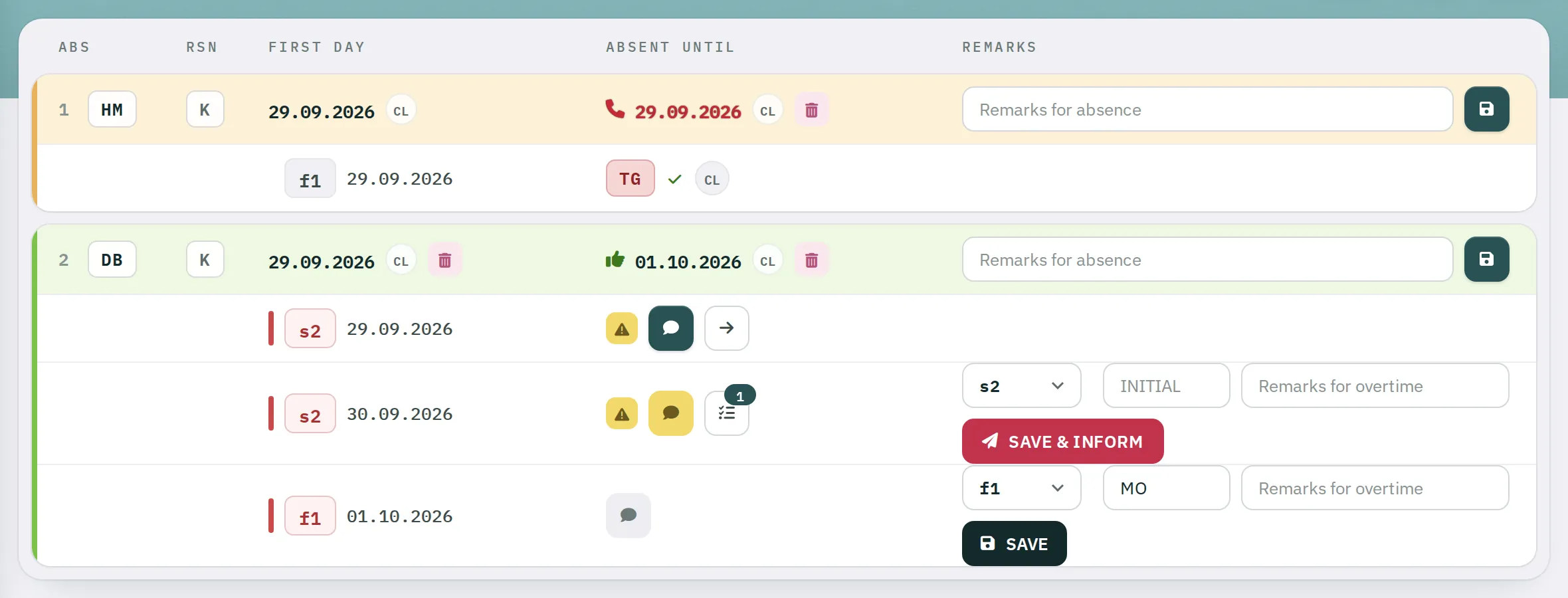
- Shift: The whole shift that dropped out is preselected. For a partial replacement, choose a number of hours from 0.5 to 13; the Starting at field then appears.
- The Initial of the person stepping in – or
NILif no replacement is needed. - Optionally, Remarks for overtime (up to 30 characters).
- Click
SAVE. If a call with a deadline is running, the button is labelledSAVE & INFORM– see Overtime call.
Confirmation: Thank you! Replacement entered. The shift appears in the person's roster as overtime and on the supervisor board with red (whole shift) or ochre (partial) initials.
What Rostify checks
| Message | Meaning |
|---|---|
| The entered person can´t replace itself | The absent person cannot replace themselves. |
| Can´t do - user already forced to work ;-) | The person already has overtime on that day – or a shift, and you are assigning a whole shift. Assigning hours alongside a shift is possible. |
| Initial does not exist! | A typing error, or the person does not belong to the unit. |
Rostify then checks rest time, shifts in a row, weekly hours and hours in sequence. If a limit is exceeded, Rostify saves anyway and shows a warning, for example CAUTION - troubels with minimum rest between shifts. Anyway.... The responsibility then lies with you.
Undoing a replacement
Delete assigned overtime under Time in the Overtime list. The shift is then open again in the absence list.