02 Staff
My Roster
Your monthly roster with hours balance, colours and symbols – and what it shows while the roster is still being planned.
- For
- Staff
- Trainee
Opening the page
Click My Roster in the sidebar or Open my roster on the dashboard. The page shows the roster of the active unit. Shifts from your other units appear with that unit's alias code.
Toolbar
| Button | Function |
|---|---|
ICS |
Downloads the published month as a calendar file – see Calendar and printing. |
Train |
Trainees only: the roster of your trainers – see Trainee. |
Clock |
Records deviations from your scheduled working time – see Time clock. Only for a published month. |
Leave |
Applies for leave and other planned absences – see Applying for leave. |
Greyed-out buttons are not available for the selected month.
Selecting the month
The tabs below the toolbar show the current month and the three following months. You can see the previous month until it has been archived.
Two views
Normal view
The month's figures are shown at the top:
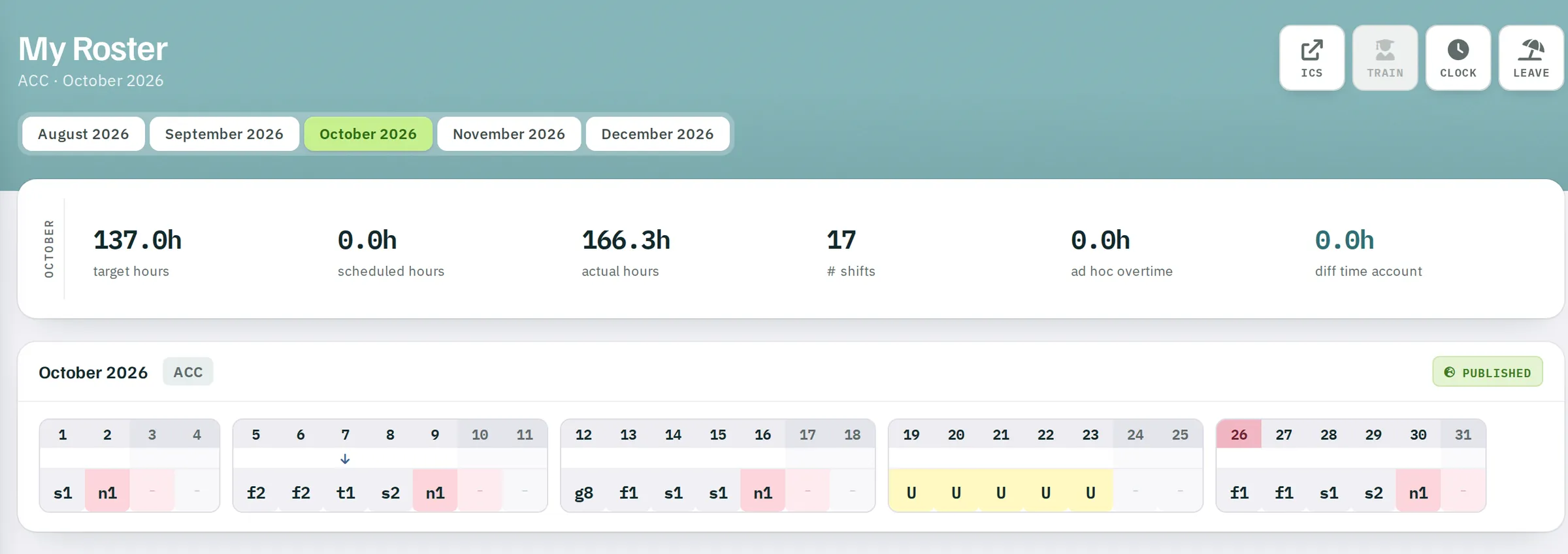
| Value | Meaning |
|---|---|
| target hours | Hours according to your employment level. |
| scheduled hours | The hours according to the published roster. This may show 0 until the month has been settled. |
| actual hours | The hours of all shifts currently entered, across all units. |
| # shifts | Number of shifts in the month. |
| ad hoc overtime | Overtime entered by a supervisor. |
| diff time account | Sum of the month's time clock deviations. |
Below this the month follows in weekly blocks from Monday to Sunday. Each day has three rows: the date, a marker row and the shift. Hover over a shift and the tooltip shows start, end, duration, who entered it and – if the planner changed your request – the shift you originally requested.
"Scheduling" view
While the roster planner is working on the month, the card has a dashed border and is labelled SCHEDULING. You only see your own requests, your absences and – if the planner changed a request – your original request. You cannot enter anything in this phase. The note not visible to others yet applies to everything you see here.
Colours and symbols
- Night shift – runs visually into the following day.
- Absent – leave, sick leave or other absence.
- Rest period infringement – the required rest period between two shifts is not met.
- Request ≠ shift – the shift you were assigned differs from your request.
- X1Yellow text – your own request in a roster that has not been published yet.
- Blue or green background – marked by the roster planner.
The marker row shows:
- the code of a sick report or other short-notice absence,
- overtime by the hour as a number, whole overtime shifts in red,
- the day's time clock deviation,
- exchange arrows: blue for your own open exchange (↑ you give, ↓ you get), magenta for a request to you. The tooltip on a magenta arrow shows the shift offered.
You can expand the full legend below the roster.
Office and OPS hours
If you have an office share (job share), a table below the roster shows the hours split into Office, OPS and overall (OVRL): the forecast (PRDCT), the target (TARGET) and the actual figure (ACTUAL). An actual value up to the target has a pink background, one above it a green background.
Not registered
If you were not registered in the unit in the selected month, the page shows Not a member of this unit.