01 Basics
The dashboard
The start page after signing in. It shows what is due today and what needs your attention – tailored to your roles.
- For
- Everyone
Header area
Above the greeting you see the weekday, date, calendar week and the active unit. Staff find two shortcuts on the right: Request exchange and Open my roster.
First row: your day
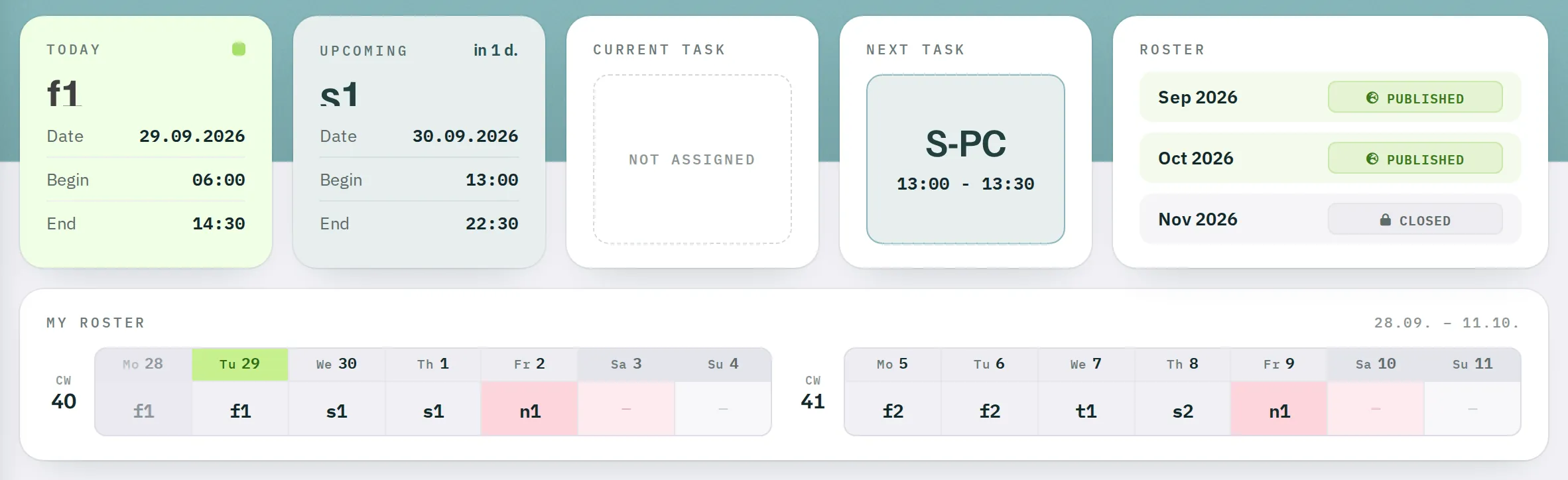
| Card | Content |
|---|---|
| Today | Your shift today with start and end time. If you have no shift, it shows day off or the code of an absence. Overtime is shown in red. |
| Upcoming | Your next shift and in how many days it starts. |
| Current Task | The position you are currently assigned to according to the OPS schedule, with the time. Without an assignment: not assigned. |
| Next Task | Your next position according to the OPS schedule. |
| ROSTER | The status of the monthly rosters of the active unit for the current month and the two following. |
The Today and Upcoming cards show shifts from all units you are registered in – but only from published rosters.
Status of the monthly rosters
| Status | Meaning |
|---|---|
| Open | Requests can be entered – up to the date shown in the tooltip. |
| Closed | Requests are closed; the roster is being built. |
| Published | The roster is visible to staff. |
| Archived | The month is closed; changes are no longer possible. |
| Finished | Support units only: the roster is complete. |
My Roster – two weeks
Staff see the current and the next calendar week with all their shifts. Today, weekends and public holidays are marked; absences and night shifts have a coloured background. As long as not every unit in which you are Staff has published the month, the week stays locked: Roster not published yet.
Supervisor area
Supervisors and Observers see the daily staffing of all their units here, the expected calls and – Supervisors only – the FACK fatigue check. Everything about this is in Situation overview.
Third row: warnings, briefings, shift exchange
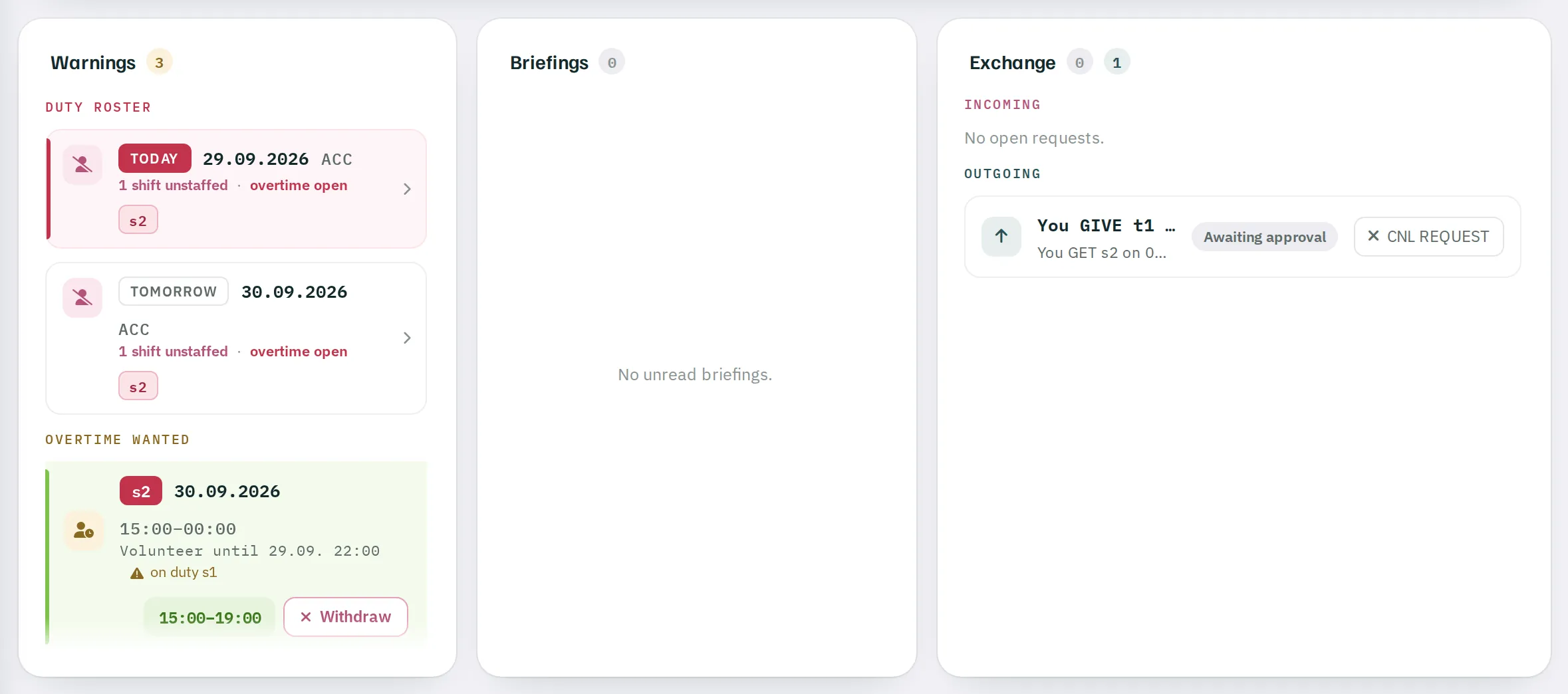
Warnings
This card collects everything that needs a response. The number in the title shows how many entries there are.
| Entry | For | Meaning |
|---|---|---|
| Notifications on this device | everyone | Offer to receive shift requests as a notification in the browser instead of by SMS. Switch on registers this browser; Later hides the notice. See Profile. |
| Overtime wanted | Staff | An open overtime call from your unit. You volunteer here – see Volunteering for overtime. |
| Overtime result | Staff | For three hours after the overtime has been assigned: You got this shift. or Assigned to someone else. Thanks for volunteering! |
| Expiring Licenses | licence holders | Your own licences that expire soon, with the expiry date. |
| Duty roster | Supervisor | Unstaffed shifts and open overtime for today and tomorrow. |
| Timer is not running | Planner | The automatic SMS follow-up is not working. Please report this to Rostify support. |
If there are no entries, the card shows No warnings.
Briefings
Unread briefings with priority and start of validity. Click one to open it. The coloured dot shows the type:
- Red – compulsory, already valid
- Yellow – compulsory, not yet valid
- Pink – daily briefing
- Blue – informative
Shift exchange
Open exchange requests, in two sections:
- INCOMING – requests addressed to you, marked DECISION NEEDED. Click ✓ to accept or ✕ to decline.
- OUTGOING – your own requests with the status Awaiting approval or Denied. Click
CNL REQUESTto withdraw a request.
The whole process is described in Shift exchange.
Quotas
At the bottom of the page, super admins see three tiles: SMS used in the current month, active Users and Departments – each in relation to the agreed quota. From 85 % usage, the bar turns red.