04 Supervisor
Writing briefings
With E-Briefing, information reaches exactly the people who need it. Compulsory briefings are read, with proof, before duty begins.
- For
- Supervisor
- Planner
- Administrator
Supervisors, planners and administrators may write and manage briefings. Briefing in the sidebar opens the module; the toolbar has four buttons:
| Button | View |
|---|---|
Read |
My briefings – your own reading list, see Reading briefings |
Pending |
Unbriefed users |
Manage |
Manage briefings |
New |
New briefing |
New briefing
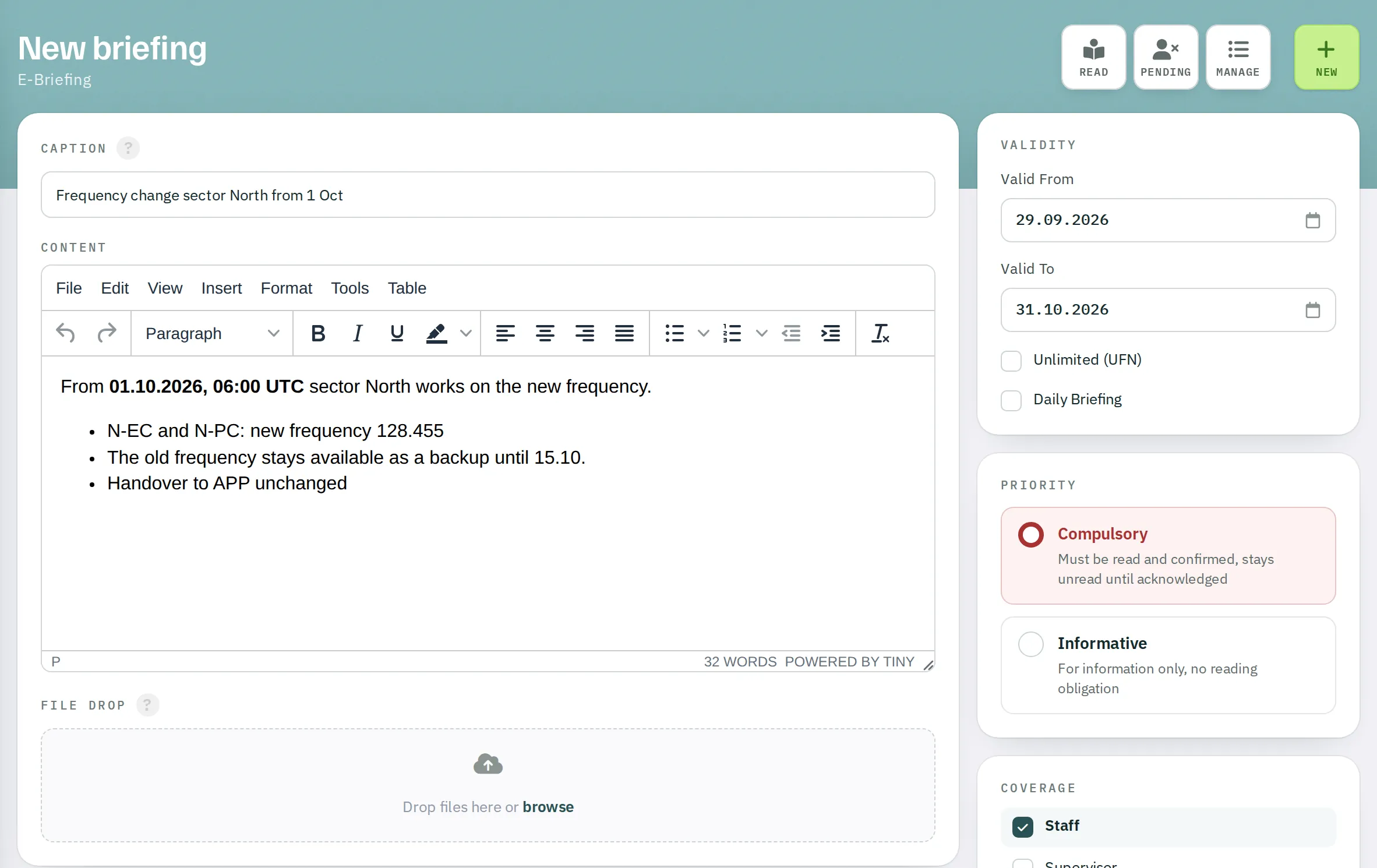
- Click
New. - Caption – the heading, up to 50 characters.
- Content – formatted text with headings, lists, tables and links.
- File Drop – up to five files of 50 MB each: images, PDF, Word, Excel. Drag the files into the field or click browse.
- Departments – click a unit on the left to move it to the selection on the right.
- Validity – Valid From and Valid To, or Unlimited (UFN), or Daily Briefing.
- Priority – Compulsory (must be read and confirmed) or Informative (no obligation to read).
- Coverage – the roles that receive the briefing: Staff, Supervisor, Planner, Admin and – depending on your subscription – Trainer and Trainee. Staff is preselected.
- Click
PUBLISH BRIEFING.
Who receives a briefing is fixed when it is published: everyone in the selected units with one of the selected roles who is registered there during the validity period. Anyone who joins the unit later only receives the briefing via Forward briefing. Without a unit or without a role, the briefing has no recipients.
A published briefing can no longer be edited. To correct it, set it to expire and publish a new one. There is no notification by push or SMS; recipients see new briefings in the sidebar and on the dashboard, and – for compulsory briefings – the supervisor sees them on the board.
Daily briefing
With Daily Briefing, the briefing applies to today only. Validity and priority are hidden. Daily briefings are only visible on their day and are deleted after seven days.
Managing briefings
Manage lists your own briefings and all briefings addressed to units in which you are a supervisor, planner or administrator. Daily briefings appear here until three days after their day.
In the Author · Scope column, a tooltip shows the roles and units addressed. The people icon opens the list of all recipients – those who have read the briefing are highlighted in green.
| Action | Effect |
|---|---|
| Forward briefing | Add other people in the organisation as recipients. Existing recipients are disabled. |
| Set expired | Sets Valid To to yesterday. The briefing disappears from reading lists. |
| Delete briefing | Deletes the briefing with all files and read receipts. Only for the author and administrators of an addressed unit. |
Who has not been briefed yet?
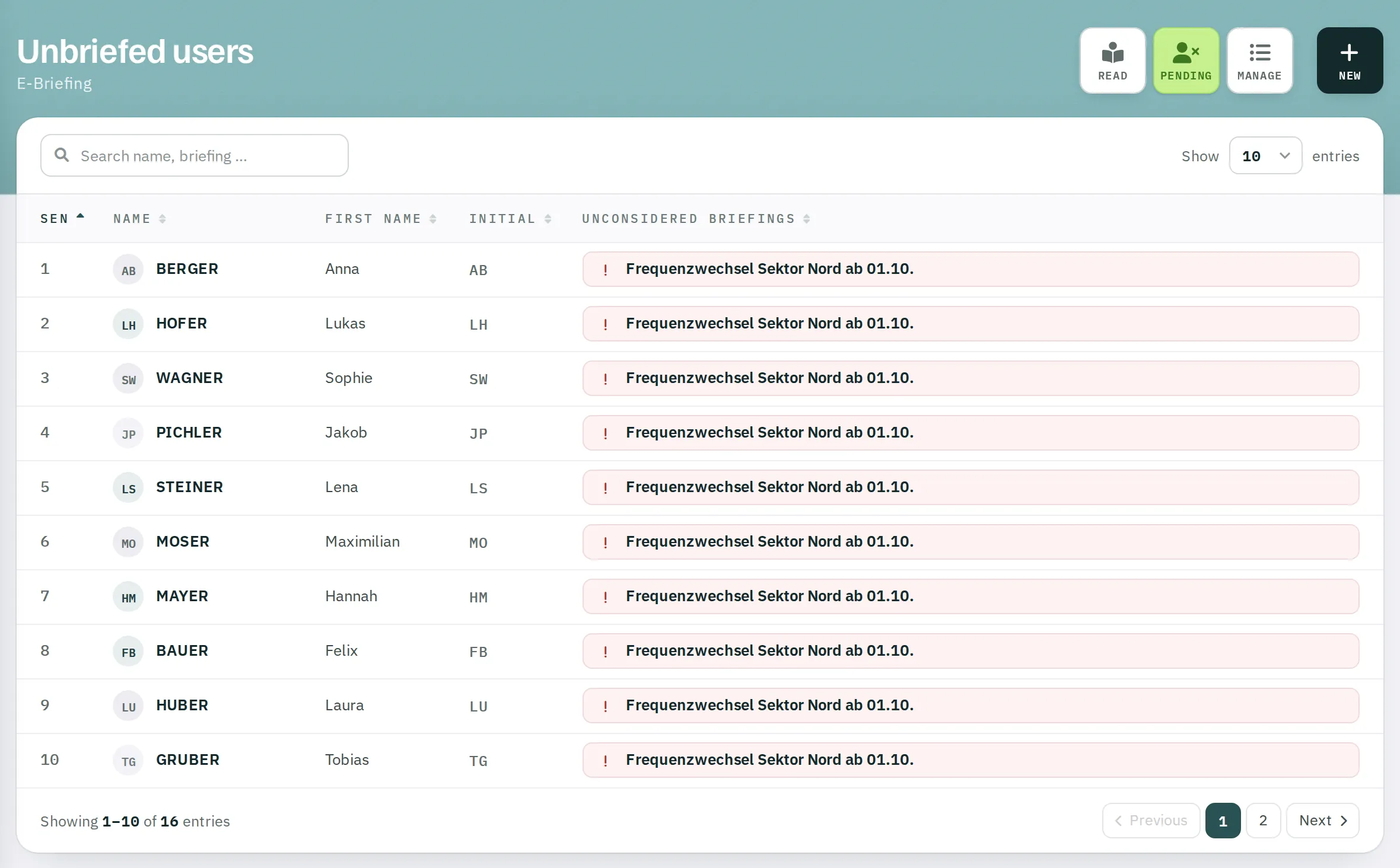
Pending shows all active people in your units who have not yet read a valid briefing, with the titles of the unread briefings in the colour of their priority. On the supervisor board, people with an unread compulsory briefing are underlined in red.
If you open a briefing yourself of which you are not a recipient, the status shows ADMINISTRATOR – you may read it but you do not confirm it.