05 Rostering
Automatic planning
The autoplan fills a month's pattern with suitable people – keeping to all mandatory rules and staying as close as possible to requests, target hours and usual patterns. Nothing is saved until you apply the preview.
- For
- Planner
Prerequisites
- A valid shift pattern exists for the month.
- The month has not yet been published; the current month and the following three months are possible.
- Staff hold the necessary licences – the autoplan does not assign anyone without a licence.
Decide the leave requests first: approved absences are then already in the roster.
Running the autoplan
- In Manage Roster, select the month.
- Click
AIand confirm the prompt. - Rostify calculates for up to two minutes and shows the elapsed time. If another planning run is in progress on the server, the calculation waits.
- The Preview appears above the grid – nothing has been saved yet.
Reading the preview
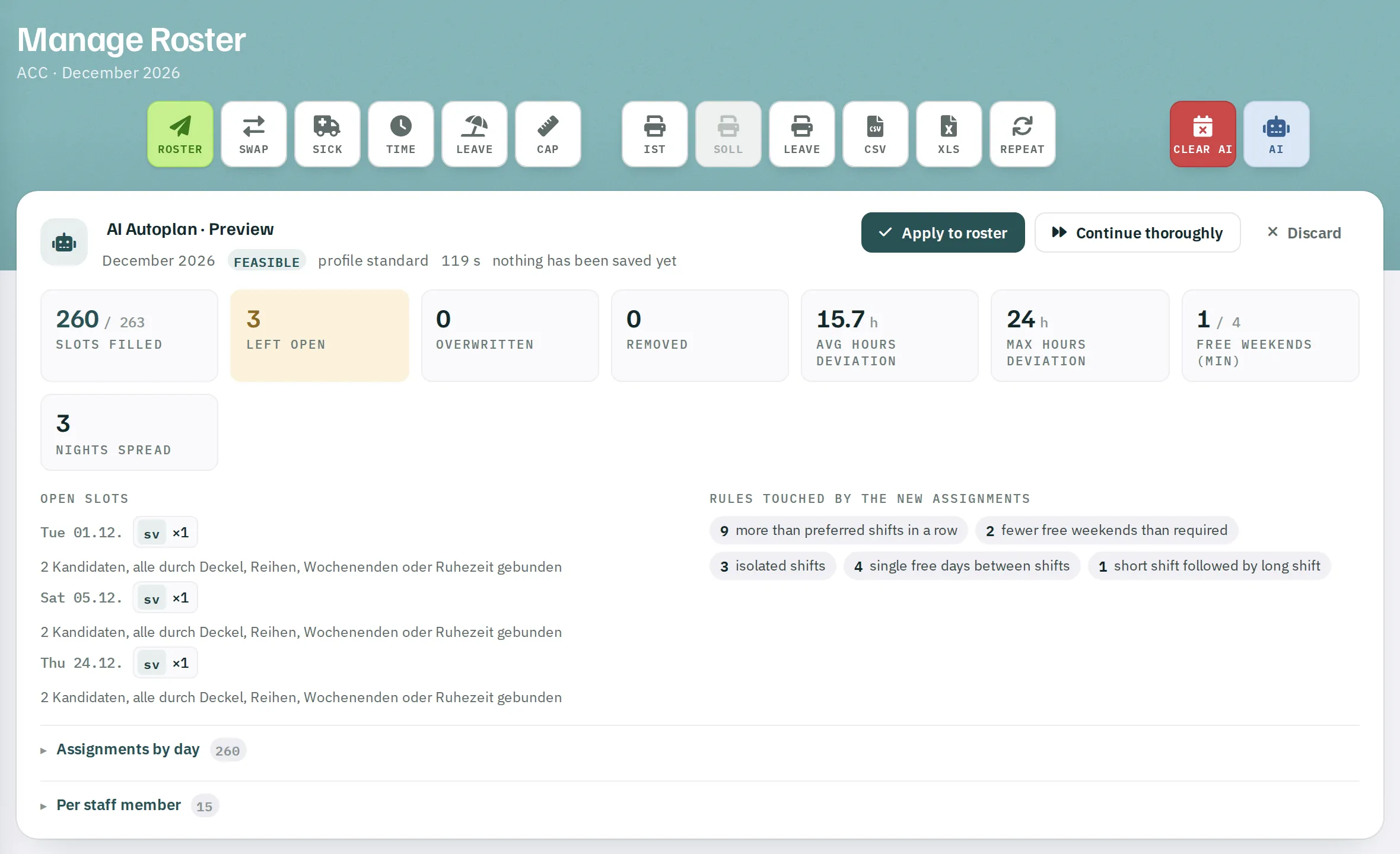
Figures
| Tile | Meaning |
|---|---|
| slots filled | filled slots out of all slots of the pattern in the month |
| left open | slots without a person – orange if greater than 0 |
| overwritten | entries such as requests or placeholders that were replaced |
| removed | shifts dropped for overloaded people |
| avg / max hours deviation | deviation from target hours across all people |
| free weekends (min) | the lowest number of free weekends any one person has in the month |
| nights spread | how unevenly the night shifts are distributed |
Sections
- Open slots – for each date, the shift and the reason, for example 2 Kandidaten, alle durch Deckel, Reihen, Wochenenden oder Ruhezeit gebunden (2 candidates, all bound by caps, sequences, weekends or rest periods).
- Rules touched by the new assignments – chips with a count, for example 16 more than preferred shifts in a row. Mandatory rules are highlighted; violations that already existed between your manual entries are labelled pre-existing.
- Assignments by day – expandable: the shifts for each day with initials. Overwrites are highlighted.
- Removed shifts (overloaded staff) – for people above the hours cap.
- Per staff member – assignments, hours against target, deviation, free weekends, weekly rests, nights and work days.
Deciding
| Button | Effect |
|---|---|
Apply to roster |
Writes the preview to the roster. Existing autoplan entries for the month are replaced. Message, for example: AI Autoplan applied: 257 new entries, 0 overwritten, 0 removed, 0 skipped. |
Continue thoroughly |
Keeps calculating for up to ten minutes – starting from the current preview – and often finds a better solution. |
Discard |
Deletes the preview. The roster remains unchanged. |
The preview is kept for as long as you are signed in – even if you open other pages in the meantime.
Applied entries show AUTO as the person who entered them and have an orange frame in the grid. You can change them by hand like any other entry.
What the autoplan does not touch
- entries of other units, absences, spare-time and office shifts,
- your own manual entries,
- shifts marked with
MRKorMK2.
It takes the requests of full-time staff into account as far as possible; for part-time staff it replaces a request with a similar shift at most. It fills placeholder requests such as "any early shift" with a shift from the same group. It does not plan people in the NON-ATCO category.
The rules
The autoplan distinguishes two levels:
- Mandatory – never violated. These include the rest period between shifts, the maximum permitted shifts and nights in a row, hours within seven days and per duty sequence, no day shift directly after a night, no night running into an absence, a minimum number of free weekends, and hours caps for full-time and part-time staff.
- Desirable – weighed against each other: requests, preferred block lengths, free weekends, weekly rests, even distribution of popular and unpopular shifts, deviation from target hours and the patterns each person has worked over the last twelve months.
The actual limits are stored for your organisation. On request, Rostify support adapts them to your works agreements.
Undoing the autoplan
- Whole month:
Clear AIremoves all autoplan entries for the month. Requests and placeholders that the autoplan had overwritten come back; removed shifts are reinserted unless you have since filled the day by hand. - One person: the robot icon in the Action column of their row.
Both are only possible as long as the month has not been published. A new run after applying builds on the applied roster. To start again from scratch, use Clear AI first.