02 Staff
Shift exchange
You exchange shifts directly with a colleague. Rostify only offers exchange partners with whom all rules are met.
- For
- Staff
Prerequisites
- The month has been published in your unit.
- Both shifts are after today. Today's shifts cannot be exchanged.
- Exchanges take place within one month and within the unit.
Requesting an exchange
- Click
Exchangein the sidebar orRequest exchangeon the dashboard. The grid shows all staff of the unit; your row is highlighted. - Select the month at the top.
- Click your own shift. It turns blue. Rostify now checks all possible exchange partners (Checking available swaps …) and greys out anything that does not fit. The tooltip on a grey shift gives the reason.
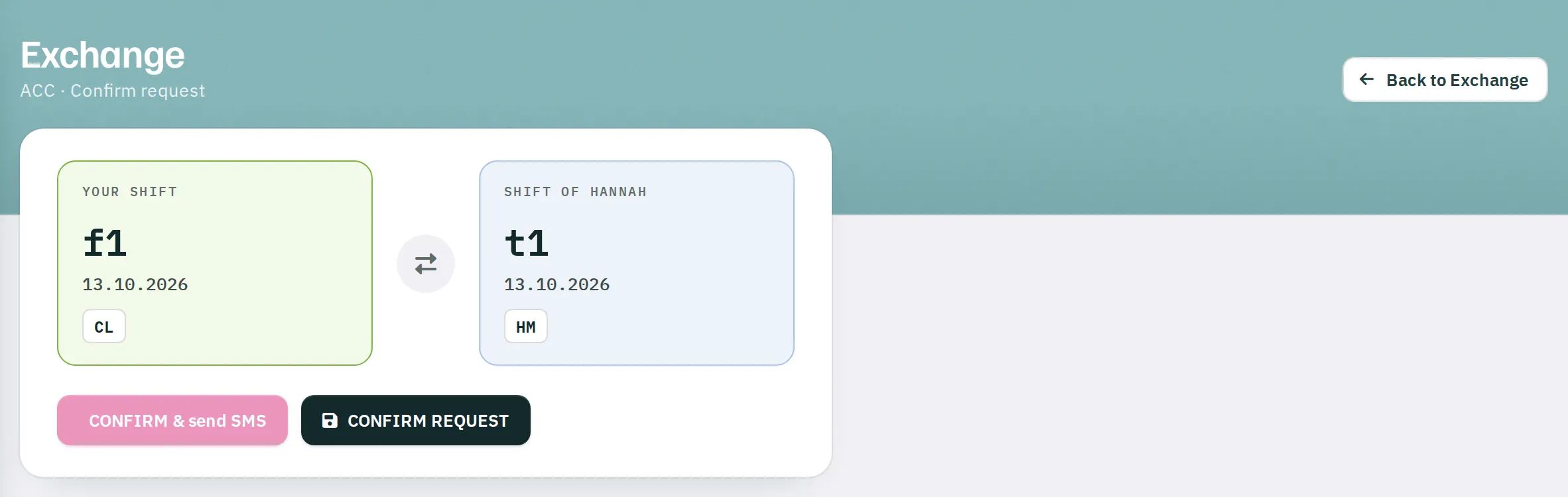
- Click the shift you want to take over. The Confirm request page shows both shifts side by side.
- Send the request:
CONFIRM & send SMSnotifies the partner immediately by notification or SMS.CONFIRM REQUESTsends it without a message; the partner sees the request the next time they look at the dashboard.
Rostify then opens the dashboard. Your request is listed under OUTGOING with Awaiting approval.
Clicking anywhere else in the grid cancels the selection.
What the colours mean
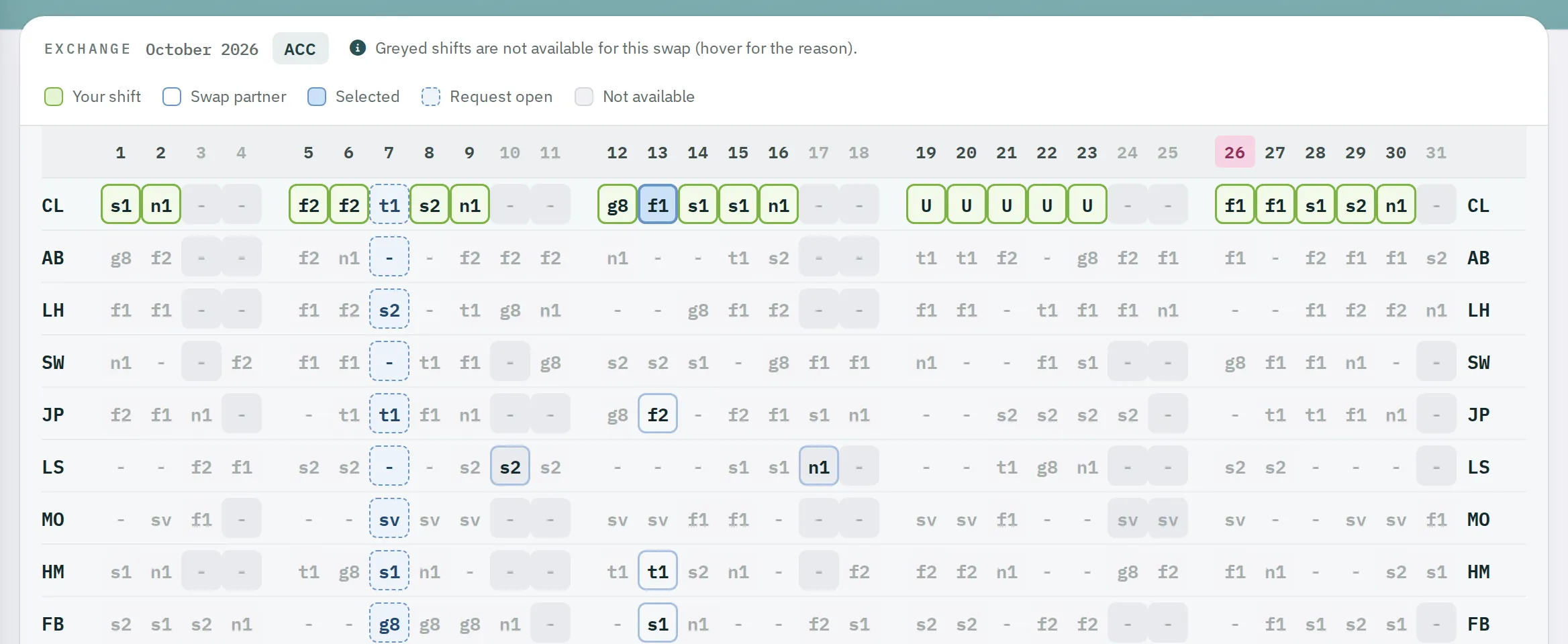
- Green border – your shift, clickable
- Blue border – a colleague's shift, clickable
- Solid blue – your selected shift
- Dashed blue – a request is already pending for this day
- Grey – not possible: no shift, in the past, overtime, missing licence, absence or a rule breached
The rules
Rostify checks the rules when you select, when you send and once more when the request is accepted:
| Rule | Message |
|---|---|
| Rest period of at least 8 hours for both | Attention: there is a conflict with required rest periods! |
| No more than 7 shifts in a row | Attention: too many shifts in a row! |
| No more than 60 hours in the calendar week | Attention: too many working hours Mo-Fr! |
| No more than 60 hours without a block of time off | Attention: too many working hours in sequence! |
| Nobody is sick or absent | Attention: trade partner is sick or absent! |
| No overlap with another shift | Attention: shifts overlapping! |
| No overtime on the exchange day | Attention: you already have overtime on this day! |
| Both hold the required licences | Attention: You are not licensed for receiving shift! |
An exchange on the same day is also allowed – for example an early shift for a late shift.
Answering a request
Requests to you appear on the dashboard under INCOMING with DECISION NEEDED and in My Roster as a magenta arrow.
✓Accept – Rostify checks the rules again and exchanges the shifts immediately. Both rosters are updated at once. The requester receives a message.✕Decline – the request stays with the sender as Denied until they delete it.
If one of the shifts no longer exists or the exchange breaches a rule, This exchange is invalid! appears and nothing is exchanged.
Withdrawing your own request
Under OUTGOING you delete your request with CNL REQUEST – including a declined one. The partner is not notified.
The roster planner does not have to approve an exchange. They see all completed exchanges in a checklist.