05 Rostering
Working positions
Working positions are everything that must be staffed in the operations room – sectors, supervisor, standby – plus briefing and break. They are the rows of the position plan and the columns of the OPS schedule.
- For
- Planner
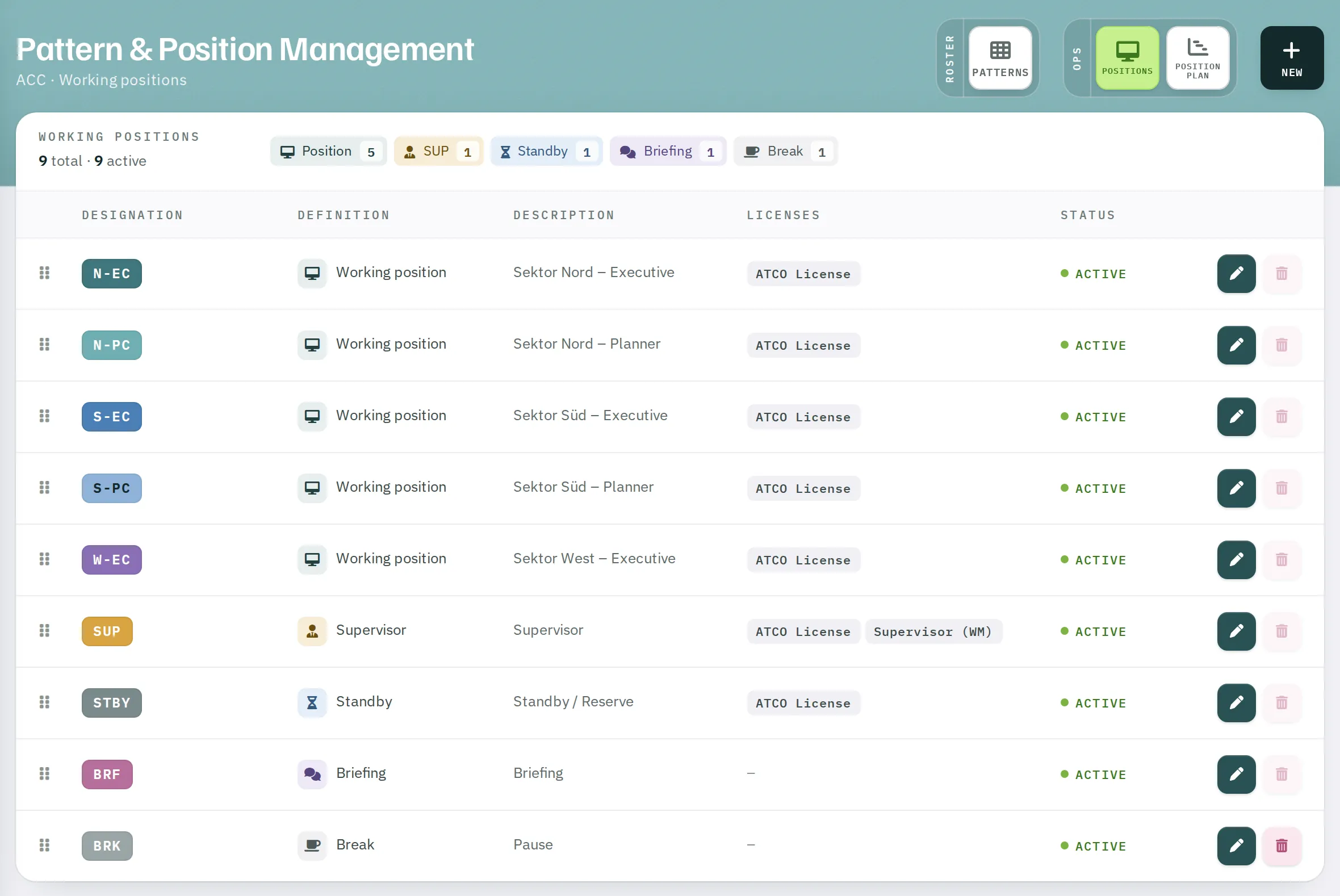
Manage Patterns in the sidebar opens Pattern & Position Management. At the top right you switch between Patterns (group ROSTER) and Positions and Position plan (group OPS).
The list
Positions shows all working positions of the unit with designation, definition, description, required licences and status. At the top, Rostify counts the positions by kind. Drag the handle on the left to change the Order – this is the order in which the positions appear in the position plan and in the OPS schedule.
Creating a position
- Click
Newor New working position. - Designation – short and unique within the unit, for example N-EC for North Executive. The preview next to it shows how the position looks in the plan.
- Colour – from the palette or as a hex value. The colour identifies the position in the OPS schedule.
- Definition – the kind of position (see below).
- Licenses – move the required licences from Available to Required.
- Optionally a Description, for example Sector North – Executive.
- Click
Position speichern(save position).
The five kinds
| Definition | Meaning |
|---|---|
| Working position | A working position that must be staffed – for example the executive or planner position of a sector. |
| Supervisor | The shift supervisor's position. Give it the supervisor licence: only then does the optimal pattern recognise supervisor shifts and apply the supervisor rules. |
| Standby | Standby. Counts as working time. |
| Briefing | The handover time. Has no staffing demand in the strict sense. |
| Break | Break time, used in the OPS schedule for the break rules. |
Active and inactive
Only active positions can be added to position plans. Deactivate positions that are temporarily not needed. The optimal pattern does not count inactive positions.
Licences on positions work in two ways: for a position that requires a licence, the optimal pattern plans a shift with the same licence, and the OPS schedule assigns the position only to people with a valid licence.