01 Basics
The interface
Header, sidebar, unit switcher and the controls that work the same way on every page.
- For
- Everyone
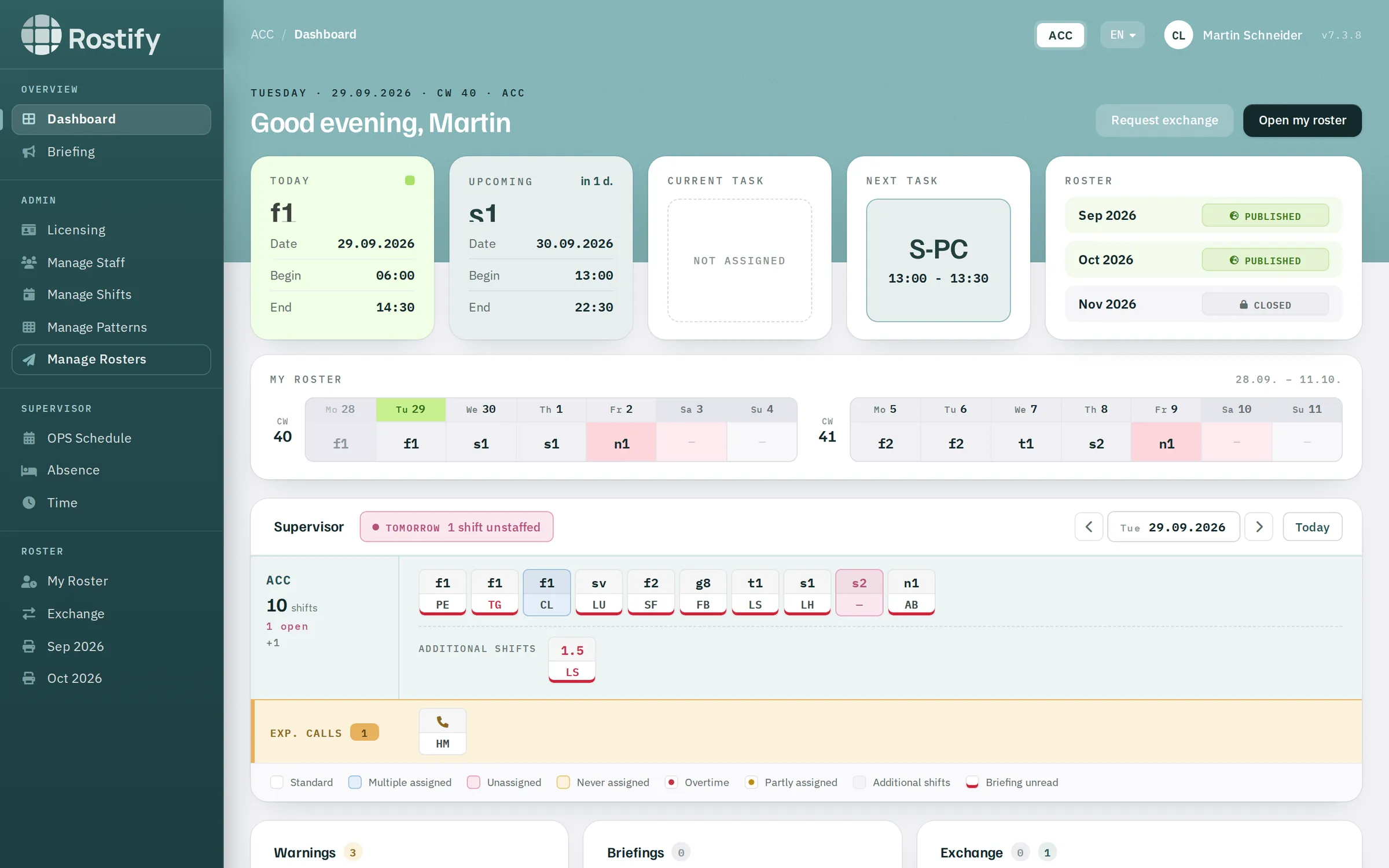
Header
| Element | Function |
|---|---|
| Logo | Takes you back to the dashboard. |
| Path | Shows the active unit and the current page, for example ACC / Manage Rosters. |
| Unit switcher | One button for each unit you are registered in. The highlighted one is active. |
| Language | DE or EN. After switching, Rostify opens the dashboard. |
| Name and initials | Opens your profile. |
| Version number | The installed Rostify version, for example v7.3.8. |
On a smartphone, the menu icon at the top left opens the sidebar. Press Esc to close open menus.
The active unit
Almost every page shows data of the active unit. Click another unit in the switcher to change it. You stay on the current page, provided you have the required role there in the new unit as well – otherwise Rostify opens the dashboard.
After you sign in, the first OPS unit in alphabetical order is active.
Sidebar
The sidebar only shows entries for which you have a role in the active unit. It is divided into four groups.
| Group | Entries | Visible to |
|---|---|---|
| Overview | Dashboard, Briefing |
everyone |
| ADMIN | Licensing, Manage Staff |
Administrator |
Manage Shifts, Manage Patterns, Manage Rosters |
Planner | |
Departments |
Super admin | |
| SUPERVISOR | Licensing, OPS Schedule, Absence, Time |
Supervisor (in OPS units) |
| ROSTER | My Roster, Exchange |
Staff |
| Months with a print icon, for example Oct 2026 | everyone with access to published rosters |
Logout is at the very bottom.
Colour marking on “Briefing”
The Briefing entry is coloured when unread briefings are waiting for you:
- Red – a valid compulsory briefing is unread.
- Yellow – a compulsory briefing that is not yet valid, or a daily briefing, is unread.
- Blue – an informative briefing is unread.
Printing the group roster
Under ROSTER, up to three months are listed – the current month and the two following – as soon as the roster has been published. Click one to open the group roster of the active unit as a PDF in a new tab. For details, see Calendar and printing.
Messages
After you save, a bar appears at the top of the page:
- Done – the action was successful.
- Warning – something was not saved, or was saved with a reservation. The text gives the reason.
- Notice – information that requires no action.
The bar disappears by itself after nine seconds. Click × to close it immediately.
Forms
- A coloured left edge marks required fields.
- The question mark next to a field shows a short explanation.
- Date fields have a calendar. You can also type the date in the format DD.MM.YYYY.
Resetrestores the values that were entered when the form was opened.
Tables
Lists with many entries have a search field, a choice of entries per page and paging buttons. Rostify remembers the search and the page in your browser until you change them.
Tooltips
When you move the mouse over a shift code or a person's initials, a tooltip shows details – for example the start, end and duration of a shift, or a person's name and phone number. On touch devices, tap the element briefly.