05 Rostering
Shifts
Shifts are the building blocks of every roster – working shifts, absences, spare time and placeholders. Every shift belongs to a unit.
- For
- Planner
Manage Shifts in the sidebar opens the list for the active unit. New creates a shift; the pencil in a row edits it, the bin deletes it.
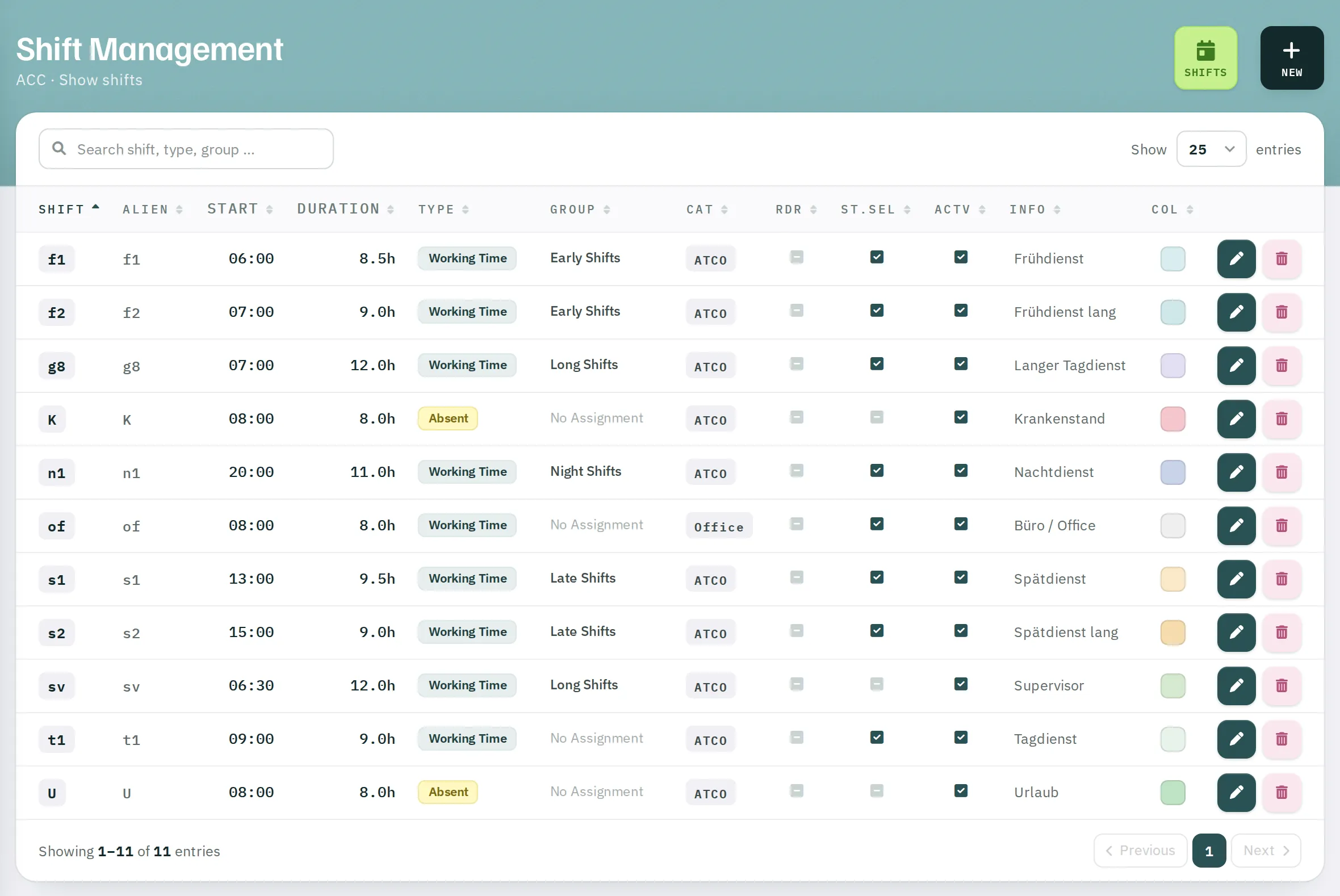
Fields
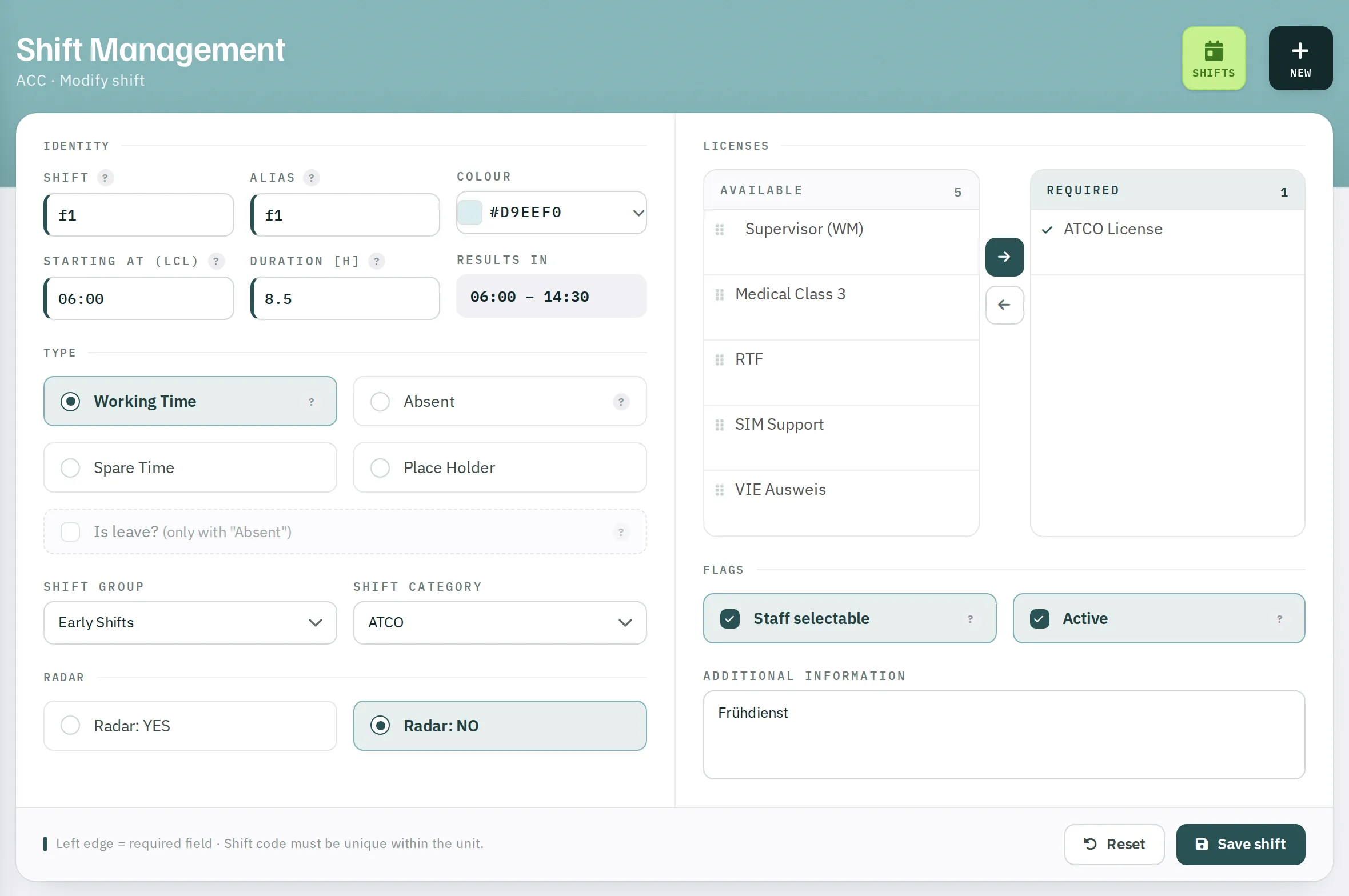
Identity
| Field | Meaning |
|---|---|
| Shift | Code, no more than 3 characters – 2 are recommended. Must be unique within the unit; a duplicate code turns the field yellow. |
| Alias | Code of no more than 2 characters that other units see instead of the shift. |
| Colour | Background of the shift in the monthly roster. |
| Starting at (lcl) | Start in local time, HH:MM. |
| Duration [h] | Duration in hours with a decimal point, for example 8.5. |
| Results in | Start and end; +1 for shifts that run past midnight. |
Type
| Type | Use |
|---|---|
| Working Time | Working shift. Counts towards the time account and must be replaced if the person is absent. |
| Absent | Paid absence such as leave, sick leave or carer's leave. With Is leave? it counts towards the leave account. |
| Spare Time | Spare-time shift; does not count as working time. |
| Place Holder | Placeholder for requests, such as "any late shift". Placeholders are deleted when the roster is published. |
Group and category
- Shift Group – Early, Late, Night, Long or none. The group controls how placeholder requests and general requests are matched. Night shifts (Night) are split across two days in the printout.
- Shift Category – ATCO, Office, STDI, Pilot, Blip. Office shifts (Office) count as office hours; staff with an office share also enter them in published rosters.
Radar
Radar: YES or Radar: NO – depending on your service scope. The setting affects how hours are converted between radar and non-radar work.
Licences
On the left under Available, click a licence and then the arrow to move it to Required. Rostify then assigns the shift only to people who hold all required licences as active – in the monthly roster, for requests and for exchanges.
Flags
- Staff selectable – staff can request the shift.
- Active – only active shifts appear in selection lists. Deactivate shifts you no longer need instead of deleting them.
- Additional Information – free text of up to 50 characters, shown in the shift's tooltip.
Click Save shift.
Changing a shift
Changes apply to all entries with this shift – including past rosters. If times change from a given date, it is better to create a new shift and deactivate the old one.
Deleting a shift
A shift can only be deleted if it does not appear in any roster. Otherwise Could NOT delete shift! appears.