01 Basics
Signing in and password
Signing in and out, setting your own password and replacing a forgotten one.
- For
- Everyone
Signing in
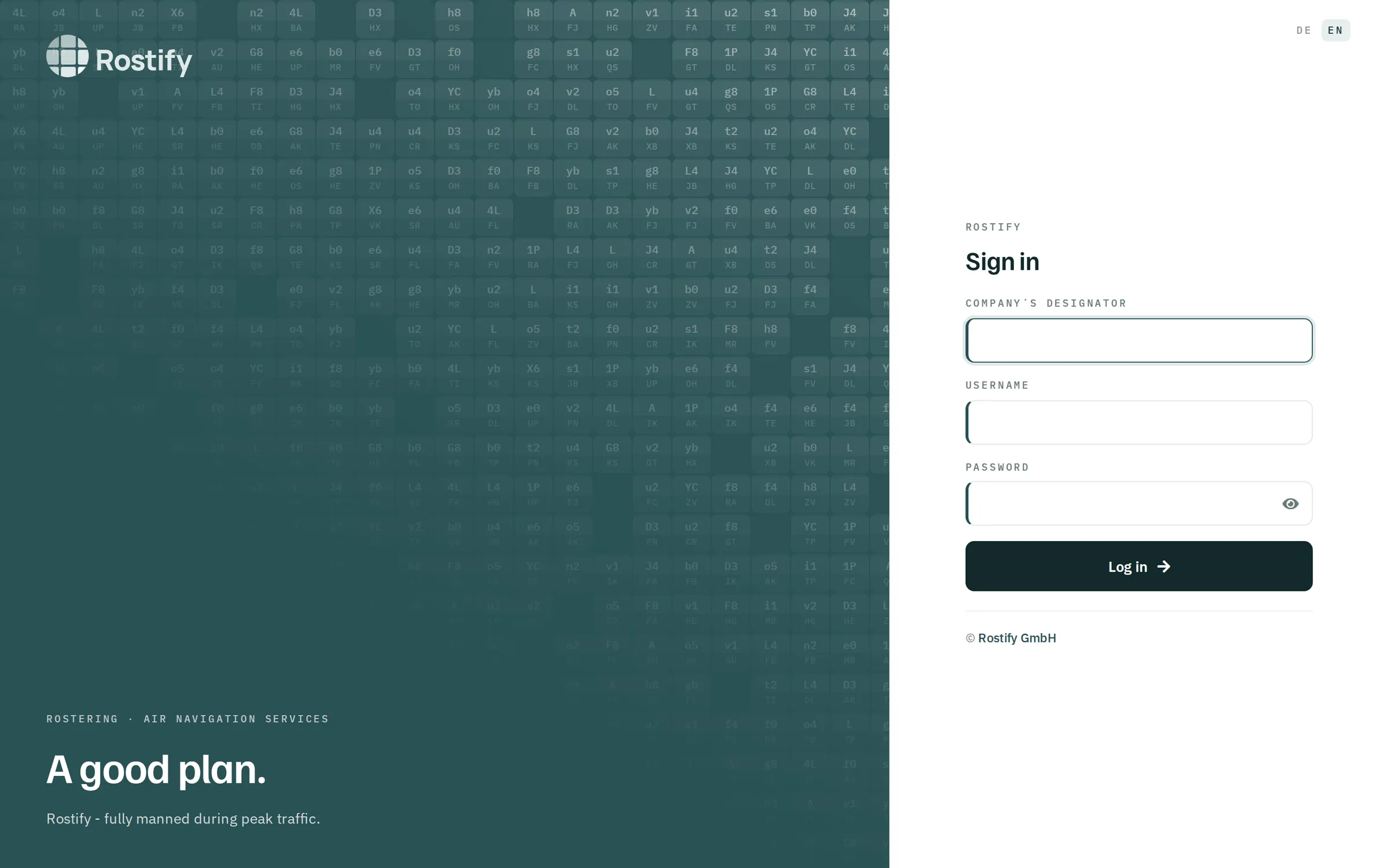
- Open login.rostify.app in your browser.
- Choose the language
DEorENat the top right. - Enter your organisation's Company´s designator (company ID). Your administrator gives it to you.
- Enter your Username and Password. Use the eye icon in the password field to check what you have typed.
- Click
Log in. Rostify opens the Dashboard.
If Rostify reports that sign-in is not possible and asks you to check your username and password, one of the three entries is wrong or your account has been deactivated. In that case, contact your administrator.
You can change the interface language at any time within the program. Rostify remembers your choice – including for notifications you receive by e-mail or SMS.
Signing in for the first time
If your administrator has given you an initial password, Rostify asks you to set your own password when you first sign in. The Set your own password page shows which rules are met. Save password only becomes active when both entries match and the password meets the rules:
- 8 to 14 characters
- upper and lower case letters
- plus a digit or a special character
From then on, always sign in with the new password.
Forgotten password
You can set a new password yourself in three steps. The Reset password page is linked to your Rostify address; your administrator will give you the link.
- Enter your address. Enter the e-mail address of your account and click
Send link. - Open the e-mail. You receive a message Reset your Rostify password with the button
Set a new password. The link is valid for 60 minutes and works only once. If nothing arrives, check your spam folder. After one minute, you can request a new link withSend again. - Set a new password. Enter the new password twice and click
Save password. The same rules apply as when you first sign in.
Once saved, you are signed out on all other devices. Sign in there again with the new password.
If several accounts share the same e-mail address, each receives its own message. Each message names the username the link applies to.
During this process, Rostify does not reveal whether an account exists for an address. The confirmation Link sent appears in every case.
Signing out and session
- Logout is at the very bottom of the sidebar.
- After 150 minutes without activity, the session ends automatically and you are returned to the sign-in page.
- If your device's IP address changes – for example when switching from Wi-Fi to mobile data – the session also ends.
- New rights given to you by an administrator only take effect the next time you sign in.
If Rostify is unavailable because of maintenance, THIS SITE IS ON MAINTENANCE appears. You cannot sign in during this time. Please try again later.