04 Supervisor
OPS schedule
The day's operational schedule – who on duty is working which position and when. Drawn by hand or assigned automatically, checked live against the rules.
- For
- Supervisor
- Administrator
OPS Schedule in the sidebar opens the operational schedule of the active unit for today. It requires a published monthly roster and a valid position plan. If either is missing, the page shows No position plan for this day or No shifts in the shift pattern for this day.
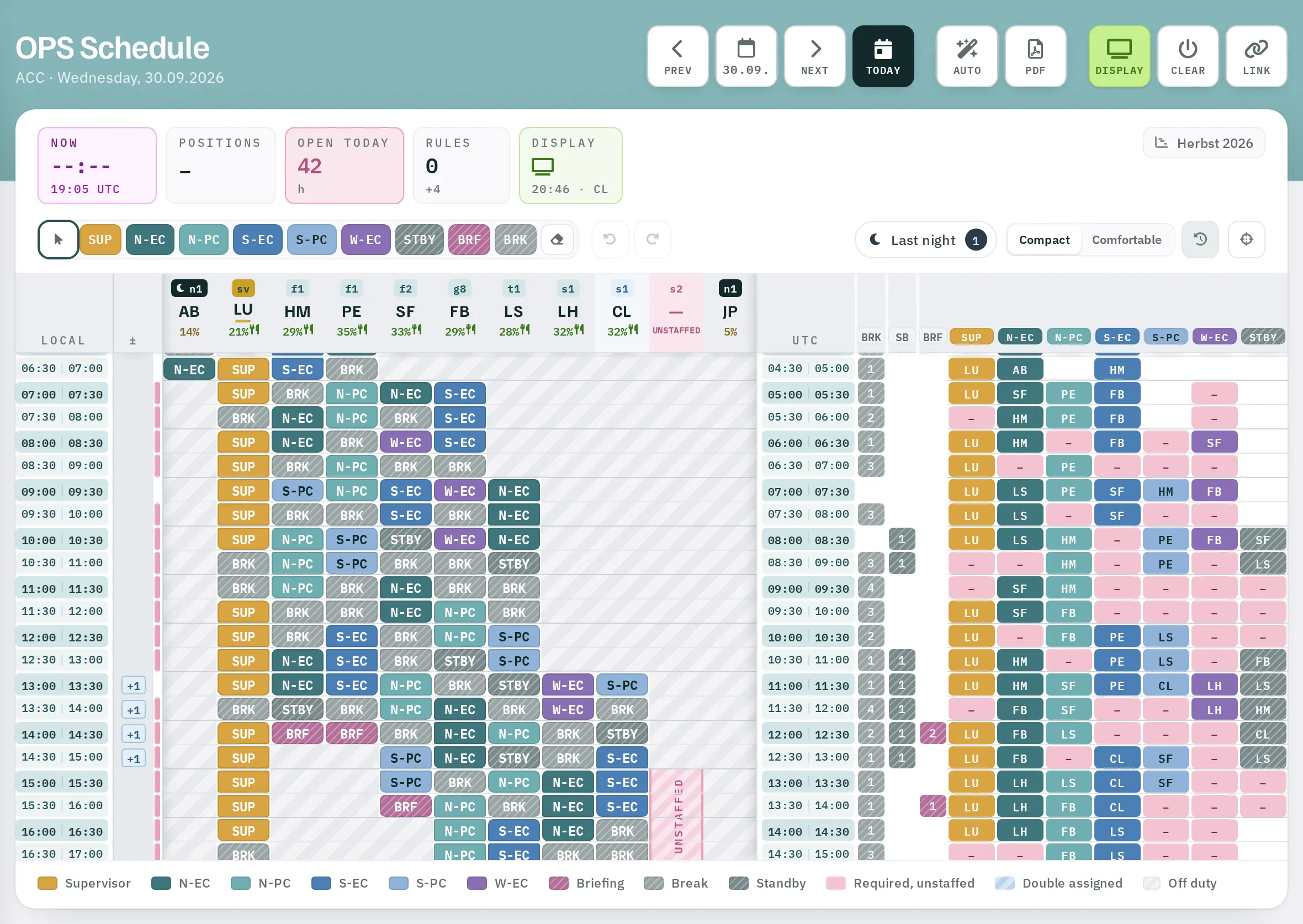
Header
| Element | Function |
|---|---|
Prev, date, Next |
Change the day. The date opens a calendar. |
Auto |
Assign a period automatically – see below. |
PDF |
The day's schedule as a PDF. |
Display |
Put the current state on the display in the operations room – see Display in the operations room. |
Delete |
Switch the display dark. |
Link |
Display link and paired displays. |
Below this are five indicators:
| Indicator | Content |
|---|---|
| Now | Local time and UTC. |
| Positions | Staffed positions out of required positions in the current time slot, for example 3/4. |
| Open today | Hours of required positions that nobody is staffing yet. |
| Rules | Number of rule violations; below it, marked +, the notices that will resolve as you continue assigning. A click lists all violations. |
| Display | Whether, and since when, the display has been showing the schedule – or Display dark. |
The name of the position plan that applies to the day appears at the top right. If someone has changed the day plan, it reads Day plan adjusted.
The matrix
Time runs downwards, in the unit's time grid, over 24 hours. When the page opens, the view jumps to the current time; a violet line marks now.
| Column | Content |
|---|---|
| Local | Local time of the time slot. |
| ± | Difference between the staff on duty and the shift pattern – negative values in red. |
| One column per person | Header: shift with times, initials, break share achieved (for example Break 5 % (min. 27 %)), a cutlery icon for a lunch break still missing, and an eye. Grey = not on duty. The main SUP is highlighted. |
| UTC | The same time in UTC. |
| BRK, SB, BRF | How many people are currently on break, on standby or in a briefing. |
| One column per position | Who is staffing the position at what time. Pink = required but unstaffed. |
The person columns also show overtime, partial replacements, overtime by the hour and – shown or hidden with Last night – the night shifts from the previous day. Anyone who is sick and has not been replaced is marked; the replacement appears in a column of their own.
Compact and Comfortable change the row height. To the right of these, you can dim the past and jump to now.
Use the eye in the column header to decide whether a person appears on the display (Shown on the display / Hidden on the display).
Assigning by hand
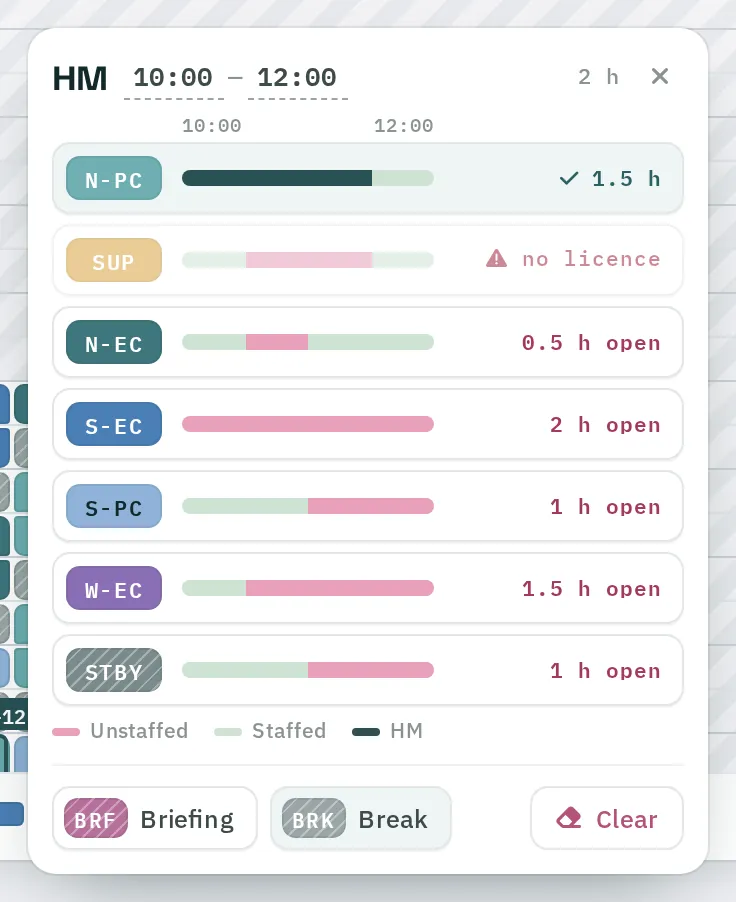
- Drag: In a person column – or across several – drag out the period.
- Choose a position: In the selection window, click the position or type its code and confirm with Enter. Del clears, Esc closes.
Every change is saved immediately; Saved appears briefly at the top. Clicking an existing assignment selects all of it.
Faster with the brush: Click a position in the toolbar – N-EC, for example – and then drag. The entry is made as soon as you release. The Eraser clears; the arrow switches back to selecting.
On touch devices, tap a row and extend the duration in the selection window.
Only positions for which the person holds all required licences are offered. ↶ and ↷ – or Ctrl/⌘+Z – undo and redo.
Assigning automatically
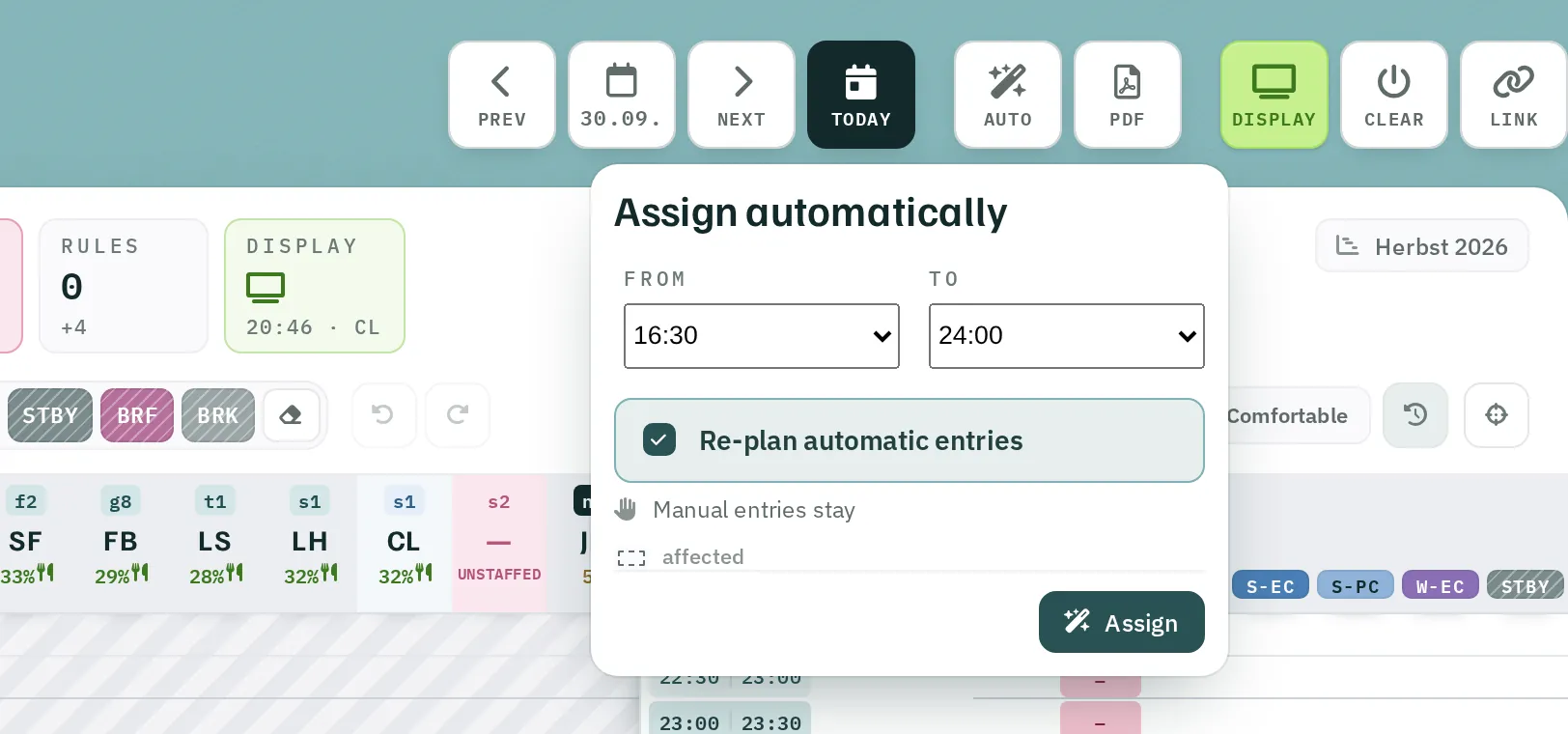
- Click
Auto. - Choose From and To. The period from now until the end of the day is suggested.
- Re-plan automatic entries – when switched on, Rostify replaces earlier automatic entries in the period. Manual entries are always kept.
- Click
Assign.
After a few seconds the result is in the schedule, for example 20:00–24:00: 38 changes. Automatic entries are marked.
From the time column
It is quicker straight from the schedule:
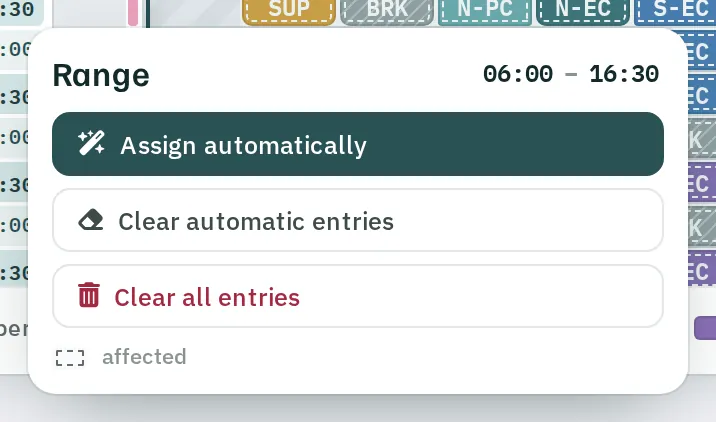
- In the time column on the left, drag over the period you want. The Range window opens.
- Choose:
Assign automatically– assigns the marked period as described above,Clear automatic entries– removes only what Rostify assigned,Clear all entries– empties the period completely, including manual entries.
While the window is open, the affected entries are shown dashed, so you can see in advance what would be replaced or deleted.
Adjusting position requirements for the day
In the position columns you change the requirement for this day only:
- drag an edge – keep a position open for longer or shorter,
- drag in an empty area – open an additional position,
- click – see gaps and Who can? – who on duty could take over the position now. Close this period removes the requirement.
Reset day plan restores the position plan.
The rules
Rostify checks every assignment immediately:
| Rule | Limit |
|---|---|
| Continuous work | no more than 1.5 h; up to 2 h if followed by at least 1 h of break or the end of the shift |
| Continuous work at night (22:00–06:00) | up to 4.5 h |
| Break share | at least 27 % of the shift, supervisors 19 % |
| Shortest work and break blocks | 30 min |
| Lunch break | from 6 h of duty, one hour between 10:30 and 17:00, within the first 7 h |
| Rest at night | 4 h in one block from 22:00 |
| Continuous standby | no more than 30 min |
| Briefing | 30 min at the end of the shift |
| Start of shift | at a working position |
| Supervisor | by day, a break after 2.5 h at the latest; at night, supervisor positions only and breaks of no more than 6 h in one block; the main SUP with the earliest shift start not at working positions |
| Licences | a position only with all required licences |
| Double staffing | a position only once at any one time |
Violations appear in red in the person column and in the Rules indicator. Not yet assigned notices – for the lunch break, for example – disappear as soon as more of the day has been planned.
The limits are stored for your organisation and apply to all units. Rostify support sets up any deviations.
Visible to staff
Staff see their current and next position on the dashboard under Current Task and Next Task – and in the app. This is based on the state you last published with Display.