05 Rostering
Deciding leave requests
Approve, decline or cancel requests for leave and other planned absences. Rostify enters approved days in the roster itself and notifies the person.
- For
- Planner
Leave in the Manage Roster toolbar opens Approve Leave.
The list
Without a filter, the list shows all requests of the unit that end in the current month or later – open ones first, 25 per page.
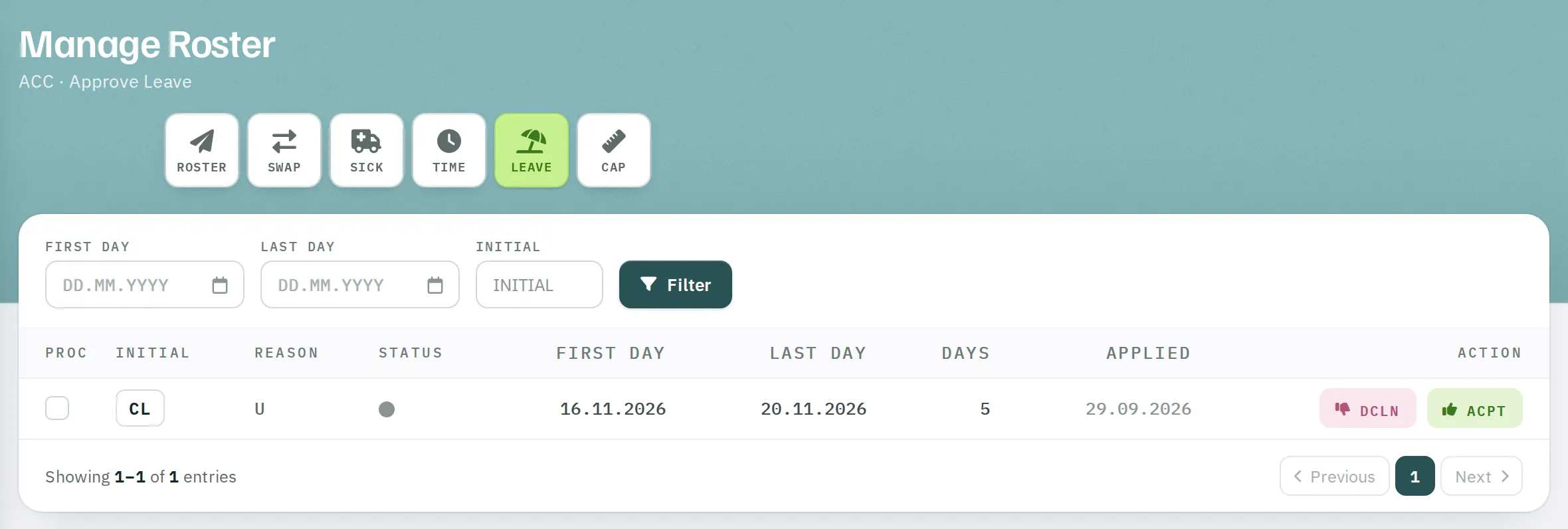
| Column | Content |
|---|---|
| PROC | Tick off as done – see Checklists |
| Initial, Reason | Person and type of absence |
| Status | grey open, green approved, red declined, blue cancelled |
| First Day, Last Day, Days | Period, calendar days including weekends |
| Applied | Date of the request |
| Action | Decision |
To find older requests, use the filter: First Day, Last Day and optionally an initial, then Filter.
Deciding
| Button | Visible when | Effect |
|---|---|---|
| ACPT (thumbs up) | open or declined | Approves the request and enters the absence in the roster for every calendar day of the period. |
| DCLN (thumbs down) | open | Declines the request. The roster remains unchanged; it can still be approved later. |
| CNL (×) | approved | Cancels the request and deletes the person's absences in the period from the roster. |
After a confirmation prompt, the decision is saved. The person receives a notification in the app – or, without a registered app, an SMS, provided the SMS quota allows.
If approval fails
Approval runs the same checks as a Repeat entry. If one of them fails, the request remains open and a message states the reason:
| Message | Remedy |
|---|---|
| There seems to be an entry already within this time period! | Something is already entered in the period – a shift, a request, a placeholder, possibly in another unit. Clear the days in the grid and approve again. |
| Date is in past! | The first day is before today. If necessary, enter the absence with Repeat. |
| Period too long! | The period is longer than about 80 days. |
Decide leave requests before running the autoplan. The days are then empty, approval succeeds first time, and the autoplan plans around the absence.
CNL deletes all of the person's absences in this unit within the period – including those that do not come from this request. Check the roster afterwards.
Printing the leave overview
LEAVE in the toolbar prints all planned absences of the month per person – approved on a green background, declined on pink, open on grey.