04 Supervisor
Overtime call
You advertise a shift that has dropped out to selected colleagues. Those who can volunteer; you assign it with one click and everyone is told the outcome.
- For
- Supervisor
Starting a call
In the absence list, click the speech bubble Start workflow next to the open shift. The Overtime Request page opens.
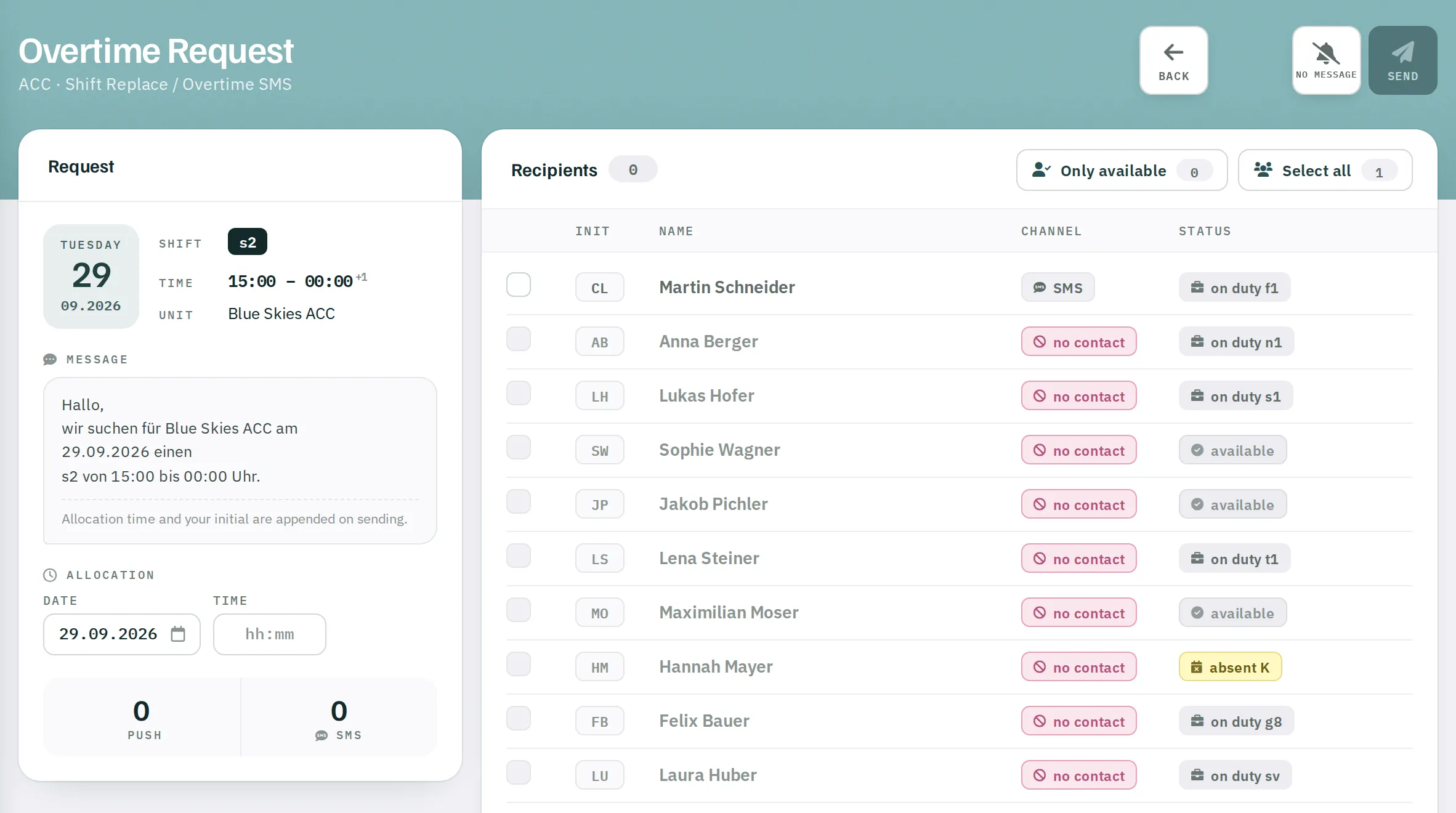
Left: the request
- Date, Shift, Time and Unit of the shift that dropped out.
- Message: a preview of the text, for example Hallo, wir suchen für ACC am 14.10.2026 einen f1 von 06:00 bis 14:30 Uhr. (the text is always in German: "Hello, we are looking for an f1 for ACC on 14.10.2026 from 06:00 to 14:30"). When it is sent, the allocation time and your initials are appended.
- Allocation: the date and time until which volunteers can respond. Mandatory.
- Push and SMS counters: how many of the selected recipients will be reached by which channel.
Right: the recipients
Everyone in the unit who is registered on the day of the shift. Nobody is preselected.
| Column | Content |
|---|---|
| Channel | Push if the person is signed in to the Rostify app; otherwise SMS to the stored number; otherwise no contact – this row is disabled. |
| Status | Availability on the day of the shift |
| Status | Meaning |
|---|---|
| ✓ available | No absence, no shift, no overtime; rest time and shift sequence are fine. |
| absent | An absence is recorded for the day. |
| on duty | The person already has a shift on that day. |
| overtime | The person already has overtime on that day. |
| rest only … h | Rest time would be less than 8 hours. |
| … shifts in a row | There would be more shifts in a row than allowed. |
Only available selects everyone who is available and reachable. Select all selects everyone reachable; a second click clears the selection.
Sending
| Button | Effect |
|---|---|
SEND |
Sends the request to everyone selected – by push where possible, otherwise by SMS. |
NO MESSAGE |
Creates the call with a deadline without notifying anyone. Staff still see it on the dashboard and can volunteer. |
BACK |
Returns to the absence list without saving. |
The absence list then shows feedback such as Invitations sent! 4 Push · 2 SMS. If a message could not be delivered, Rostify names the initials.
Status of the call
The speech bubble next to the shift shows the current state:
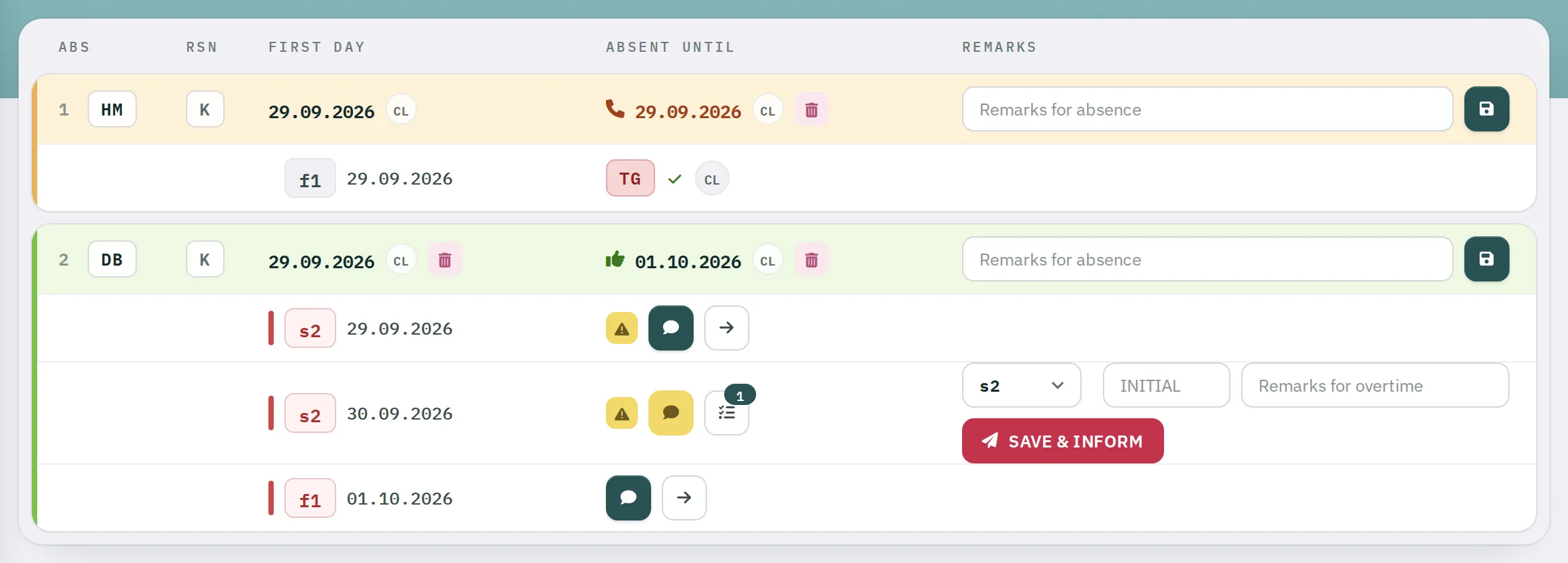
- Yellow – the deadline is running.
- Red – the deadline has passed and the allocation is due.
- Green – deadline passed.
- Grey – without workflow or already assigned.
If nobody has volunteered by the deadline, the call stays open for two more hours.
The volunteer list
The button with a list and a counter next to the shift opens Overtime Volunteers:
- A header with the shift, time, unit, who posted the call and the deadline.
- Volunteers with code, name, the time offered (whole shift or from–to), how the offer came in (self via the dashboard or app, or entered by a supervisor) and status.
- Notes such as no licence, 4 OT (from four overtime shifts in the month) or Part-time 80 %.
The list is sorted: available and full-time first, whole shifts before partial offers, then by time of receipt. People without the licence are at the very bottom.
Enter offers made by telephone yourself: Initial, optionally From and To, then ADD. Use the bin to remove an offer. After the deadline, the list is read-only. The printer icon produces the list as a PDF.
Assigning
- In the replacement form below the shift, enter the Initial of the chosen person – for a partial assignment, with hours and start time.
- Click
SAVE & INFORM.
Rostify enters the replacement and notifies:
- the chosen person with an assignment – including the times for a partial assignment,
- everyone else on the volunteer list with a decline and thanks for volunteering.
The success message states how many messages were sent by push and by SMS. If the chosen person was not on the list, Rostify warns you: everyone who volunteered has then received a decline.
SAVE & INFORM is available once per call – even before the deadline. If the assignment is later deleted and the shift reassigned, no second round of messages is sent.
Messages are sent in the language the recipient has set in Rostify.