02 Staff
Applying for leave
You apply for leave and other planned absences electronically. The roster planner decides, and Rostify enters approved days in the roster automatically.
- For
- Staff
Submitting an application
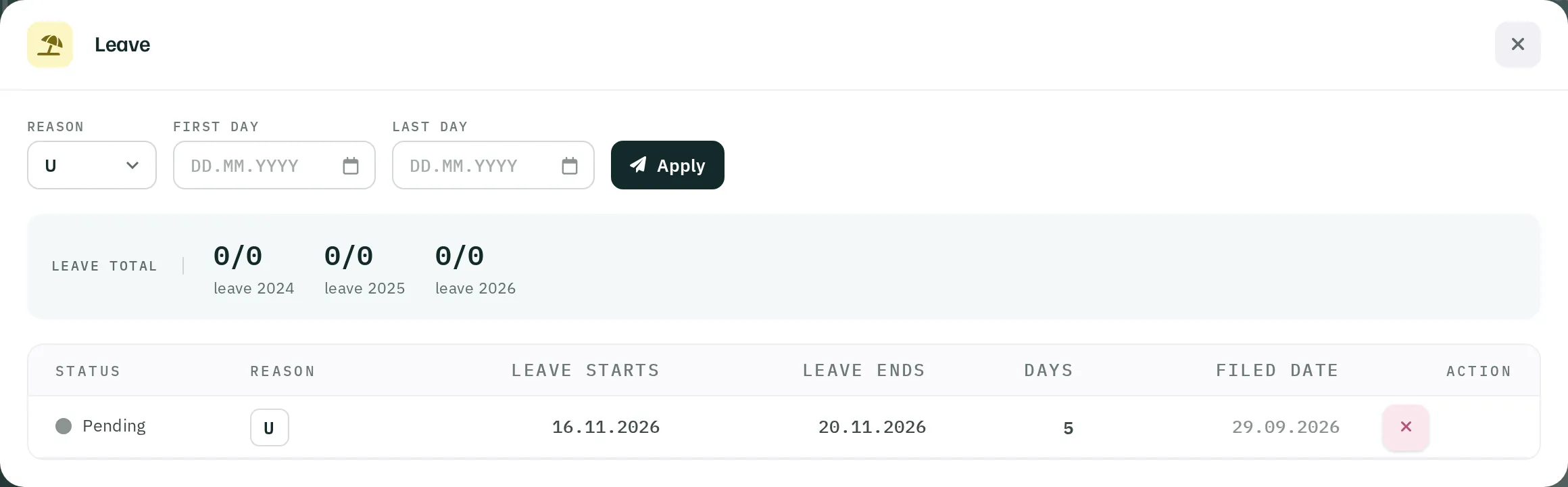
- Open
My Rosterand clickLeavein the toolbar. The Leave window opens. - Under Reason, select the type of absence. U (leave) is preselected. Your unit defines which types exist – such as special leave or business trip.
- Select the First Day and Last Day.
- Click
Apply.
The confirmation reads Thank you! Leave entered from … to …. The window stays open; the application appears in the list below.
What is not possible
| Message | Reason |
|---|---|
| Roster already published for this period! | No application is possible for published months. Contact the roster planner. |
| Date is in past! | The first day is before today. |
| Period too long! | An application may cover about 80 days at most. Split longer absences. |
| Dates too far in future! | The last day is more than 13 months in the future. |
| You have already filed an application within this period! | An open or approved application overlaps. |
| Please check dates! | The last day is before the first. |
Tracking the status
The list in the window shows your current applications in this unit with reason, period, number of days and filing date. The dot in the Status column shows the decision:
- Grey – pending
- Green – approved
- Red – not approved
- Blue, struck through – cancelled
For every decision you receive a notification in the app or – if no app is registered – an SMS. Rostify automatically enters approved days in your roster as an absence, for every calendar day of the period.
Revoking an application
You revoke an open application with ✕ Revoke application. After a confirmation prompt the application is deleted. Once an application has been approved, only the roster planner can cancel it.
Leave account
At the top of the window you see your remaining days for the current year and the two previous years as well as the total, each shown as remaining/entitlement. The oldest year is used first. Your administrator maintains the account.
Sick? A sick report is not an application. Report to the supervisor as usual – they enter the absence.