04 Supervisor
Display in the operations room
The OPS schedule can be shown on a screen in the operations room – via a fixed link or a paired device.
- For
- Supervisor
Putting the schedule on the display
The display does not show every change immediately, but the state you release:
- Plan in the OPS schedule.
- Click
Display. The Display indicator then shows On display since with the time and your initials.
If you change anything afterwards, the indicator shows Changes not yet on display, and a dot on Display reminds you. Another click puts the new state on the screen.
Delete switches the display dark – after the prompt Switch the display dark?. It stays dark until a schedule is shown again.
Setting up a display
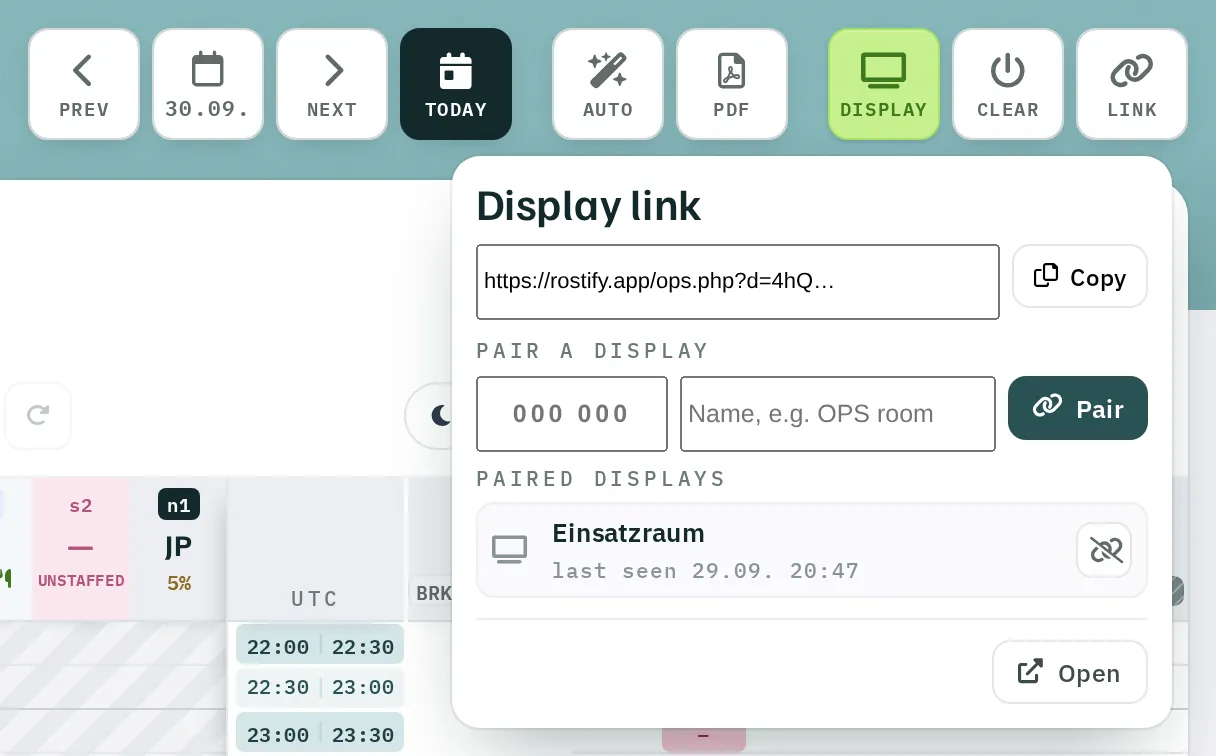
Link opens the Display link window.
Option 1: fixed link
Copy the link with Copy and open it in the browser of the display computer, ideally in full-screen mode. Open opens it in a new tab for testing.
The link works without signing in. Treat it like a key and only give it to computers in the operations room.
Option 2: pairing a display
A display computer that has not yet been paired shows a six-digit code.
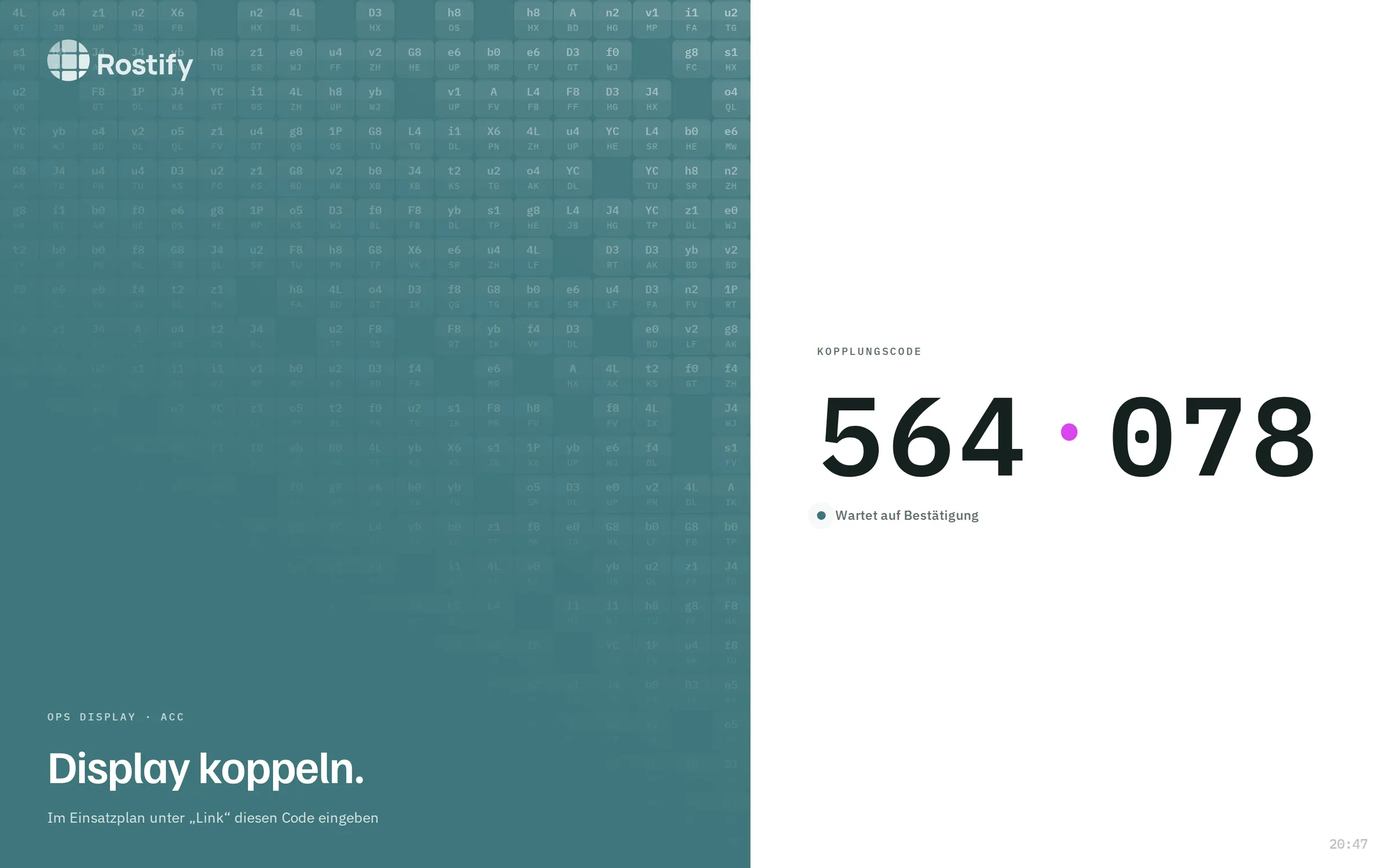
- Enter the code under Pair a display.
- Give it a name, for example OPS room.
- Click
Pair. Confirmation: Display gekoppelt (display paired).
Paired displays lists all devices with their name, online or last seen …, and IP address. Use the icon next to a device to unpair it; it goes dark and shows a new code.